
An option to turn off the curve factor to let the grayscale do the sculpting. For hardsurface shapes.
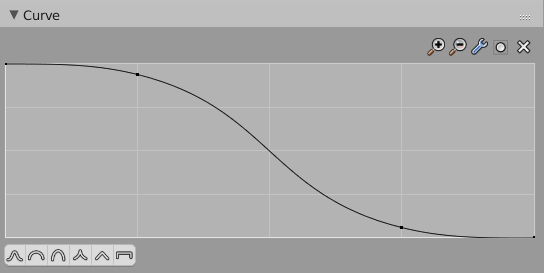
When you use a grayscale texture extracted from a hardsurface model (like a screw/bolt cap) you expect it to resemble that same model shape, but the "curve" will influence that shape in bad ways: pinchy spot at top-center of the stamped brush, angles get smoothed washing away the shape, so in the end you simply cant get a 1:1 aspect between your texture for hardsurface sculpting and the shape of the original hardsurface. Nor the default curve options seems to do the job. Peraphs you can create a curve until you got the "perfect" influence, but then you cant save/store that custom curve.
When needed it should be possible to let the texture do 100% of the job about influencing the surface you sculpting on, disabling the "curve" factor for the time being.
7 Comments
Why not use the constant preset for the curve? Wouldn't that do what you want?
@Jason van Gumster: Do you have this example?
@motionr3d: It could be that I'm misunderstanding the question, but the curve presets (the buttons on the bottom left of the image attached to this proposal) give you a lot of options. The last button in those presets is the "Constant" setting. That should be equivalent to disabling the curve altogether.
@Jason van Gumster: What definitions about the curve widget and its concept of using the brush can we have more? Can you tell me or indicate something on the text or video internet?
@motionr3d: I'm not sure what you're asking here. I'm also not sure if I understood what @fabiodonnini was asking for, but he hasn't responded yet.
@Jason van Gumster: OK!
In this discussion. Could you give me an example of your question inside the blender. You can post a video about this subject or images that I can not see. If it is a video it would be better!