
Handy reminder for Blender 2.81
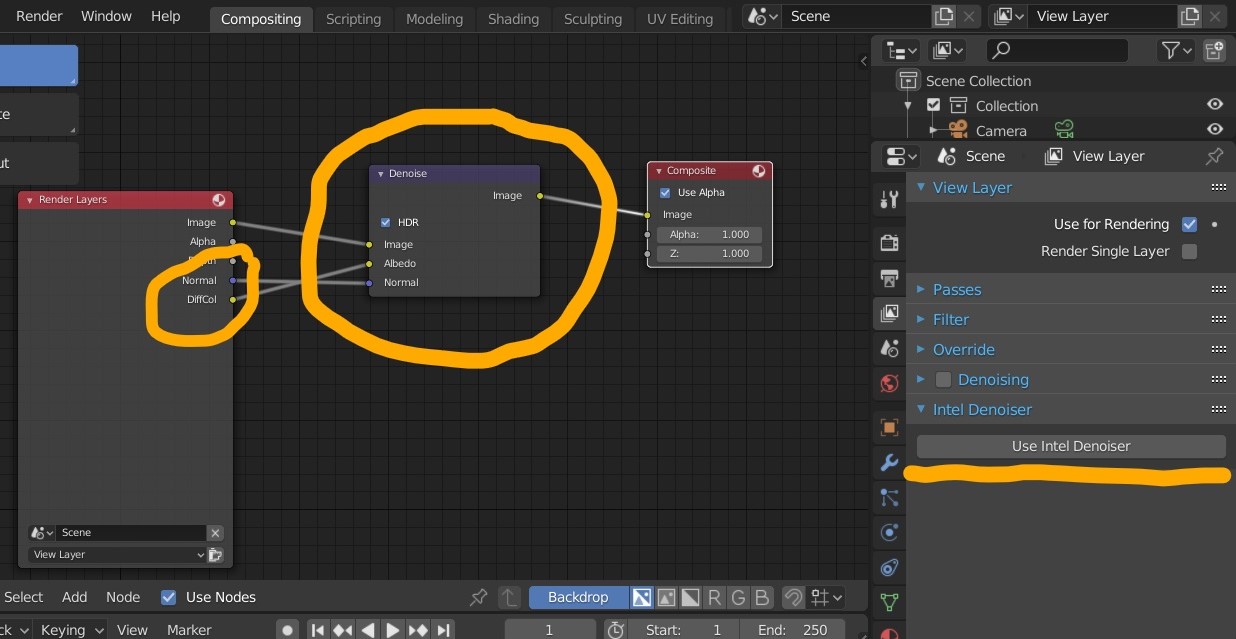
Awesome feature of Blender 2.81 is Intel Denoiser. And I think that it is a good idea to add Intel Denoiser panel, because some blender users maybe dont know about this feature and will use old blender denoiser. This panel will show people that Intel Denoiser exists. Also it will make using of this denoiser easier, because you must enable many things and connect sockets in compositor, but button in this panel can make it auto.
6 Comments
Agreed, though I guess it'd be more consistent with the rest of the UI if it was a dropdown menu under the Denoising panel, like "Method: Blender/Intel/Nvidia/whatever" with each presenting their own options when selected,like how it is with "Render engine: Eevee/Cycles/Workbench" at the moment?
Yes, it is good idea, because UI will be more compact.
"You have my sword!" BUT with better setup: {attachment INTEL_DENOISER_SETUPPNG}
* @jeremiasznm * This is my first time seeing this option, I will be trying this out, are you getting better results with this method?
* @akshayxw69 * Yes, it gives less blur (using denoised normal and denoised albedo outputs), but sometimes strange shadow artifacts come out when you render with very few samples (using noisy image output). Maybe it depends on how bright your scene is. I haven't figured it out yet. For now I SUPPOSE it may be related to the fact that deniozer tries to guess the surface of the model based on its learned probabilities and algorithms. It operates such data from its AI training. Choosing Image Output or Noisy Image -> Maybe it's a matter of giving it either more detailed, different or separated noise data (noisy image output), or more information from the entire spectrum that helps to guess what is in the dark parts of the image (image output)? I don't know if I understand it correctly, maybe I am totally wrong :P They look the same in the viewer while using 100 samples but you can spot the difference at really low sample rate : {attachment IMAGE-horzpng}.
For this reason, another option is to use Image Output instead of Noisy Image - as in your setup, but for Albedo and Normal use denoising data - as in my example. Probably this would be the best solution. This should also give better results than in your setup itested :D {attachment II_setupPNG}
And the other way is to combine Intel Denoiser with separated passes with Bilateral Blur on diffuse indirect output or other pass that have noise in it. With a small amount of iterations (like 1) set on the Blur node it looks slight sharper than using only denoiser. But this method has its drawbacks. The one is that It can be too "sharp" or rather change the image to much in lo contrast areas and on the edges. Mixing these two methods only works well with more samples and probably different scenes require different treatment. By using only bilateral blur on the diffuse indirect layer, only some noise can be removed. Unfortunately It stays In mirror reflections and on e.g. objects that have SS noise. Adding Denoiser to this setup helps to remove it. Its time consuming and can be tricky. It may be quicker and easier to simply use the denoizer and fotoshop for postproduction. These are such slight differences that it is probably a waste of time to play in the trees of nodes. You can still figure it out and come up with more combinations and test things. {attachment dinoiser_plus_separated_passes_with_bilateral_blur_nodepng}
Check other combination: youtube.com/watch {attachment testPNG}