
Change the behavior of the transform active tools
The move rotate and scale icons in the toolbar should be modified to only turn on and off the transform gizmos that are now in the Viewport Gizmo drop down. They shouldn't disable any other active tools like Select, Select Box, Circle Select, Etc.
Also, the drag behavior of the Select Active tool should be changed from always being a move transform to respect what transform gizmo is enabled.
Edit:
I know I'm not the best at describing this concept so I created an addon to better illustrate my point.
Basically it changes the drag behavior when the Select Active Tool is enabled to perform the transform based on what Gizmo is enabled. Please try it out and give feedback.
This creates a QWER Panel with Move, Rotate, and Scale buttons in the "N" panel. These enable the Transform Gizmos that are normally hidden away in the Viewport Gizmo drop down. Unlike the check boxes in that drop down menu, these can be assigned to keyboard shortcuts.
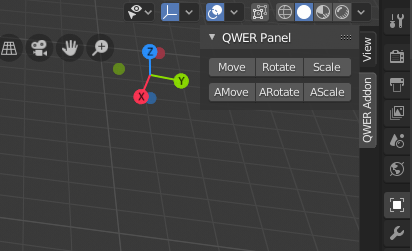
It also enables a new transform mode that can be assigned to a Tweak shortcut for the Select Active Tool in the active tools toolbar. It basically give the select tool the ability to Move, Rotate, or Scale based on what Gizmo is currently active instead of being stuck in Move tweak mode.

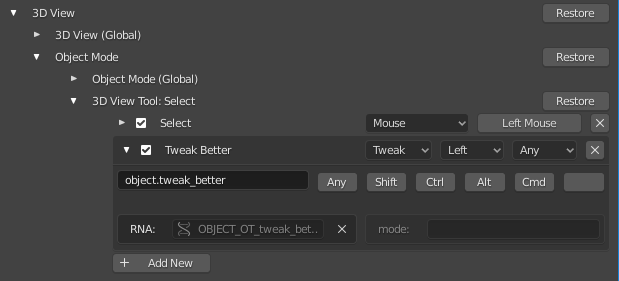
The TweakBetter operator can be assigned by adding a new entry under the "3D View Tool: Select" category like so:
Original Post:
The active tools are really nice for speeding up the workflow and are also great for beginners or people moving from other 3d programs. However the transform tools are not a good match for the active tools concept. They require a lot of extra steps, because you can't easily select multiple objects while these tools are active. This makes the active tools seem buggy and will turn off a lot of experienced users of other DCCs by making interaction in Blender seem slow.
The Blender developers remedied this to a point by adding toggles for the transform gizmos, but hid them away in a new drop down (I won't go into how cluttered the top of the 3d viewport is starting to look). This also gives the impression of a slow modelling and layout workflow.
I propose that the Move, Rotate, and Scale tools in the toolbar turn into toggles that can be turned on while other active tools are on. This would allow any of the select Active Tools to be active and also enable move, rotate, or scale, or any combination of the three. The main change this creates is that dragging in an empty space would operate the currently activate tool (box select or extrude, for example) instead of transforming. This would greatly speed up working with the tools.
The user would activate these tools using keyboard shortcuts or by clicking the transform tool in the toolbar. Clicking would disable any other transform tools, but any other active tool would not be disabled. Shift+Clicking a button would add or remove that transform type gizmo.
I created a simple addon and associated keymaps that use the industry standard QWER keys to toggle the select modes, move, rotate, and scale gizmos, respectively. Using the CTRL+Alt modifiers will allow you to add or remove additional gizmos. The traditional, fast transforms that Blender users know and love can be activated by clicking the key and dragging.
I am working on overriding the behavior in the toolbar which requires modifying the Blender startup scripts, but for now, the keyboard shortcuts and operators work really well. Try it out and let me know what you think.
5 Comments
The transformation tools confuse me as a 3ds max, Maya, and Fusion360 user very much. Mainly, I don't get the difference between, e.g., Move via "G" and Move via Spacebar + G. While G jumps right into a locked in move mode without any visual clue what's happening (like a gizmo), spacebar + G gives me what I know and love about this function.
Okay, let's say these are two separate modes/functions, which is legit, then why do they are registered under the same "Move" keymap? When I deactivate the "Move" keymap (3D View section) which is mapped to "G," I also remove the "G" from the "Spacebar + G" command, which then becomes "Spacebar + 3". Same applies for rotation and scale.
This seems so inconsistent! You map two tools which behave differently to the same key but to activate the second one you need to go a detour over the selection menu (spacebar) - whose functions cannot be remapped because they are reflecting the first tool's mapping.
I sorta did a keymap concept for Bforartists that would toggle these toolset with the WER hotkeys also, and the quick transforms with the hotkey on drag too. I found it a good system to fusion legacy transforms and toolshelf transforms.
* @Andres Stephens - Trinumedia * nice! Great minds think alike. So you were using the gizmos and not the active tools?
* @dpdpforlife * I found sequential hotkeys harder than just using the widget, but the Viewspace transform on quick toggle still is quick and fast. I just fusioned those workflows. Here is the showcase: youtube.com/watch
Fully support this one. Also linking to devtalk thread: devtalk.blender.org/t/remove-the-transform-active-tools/6838/72