
Snap to intersection
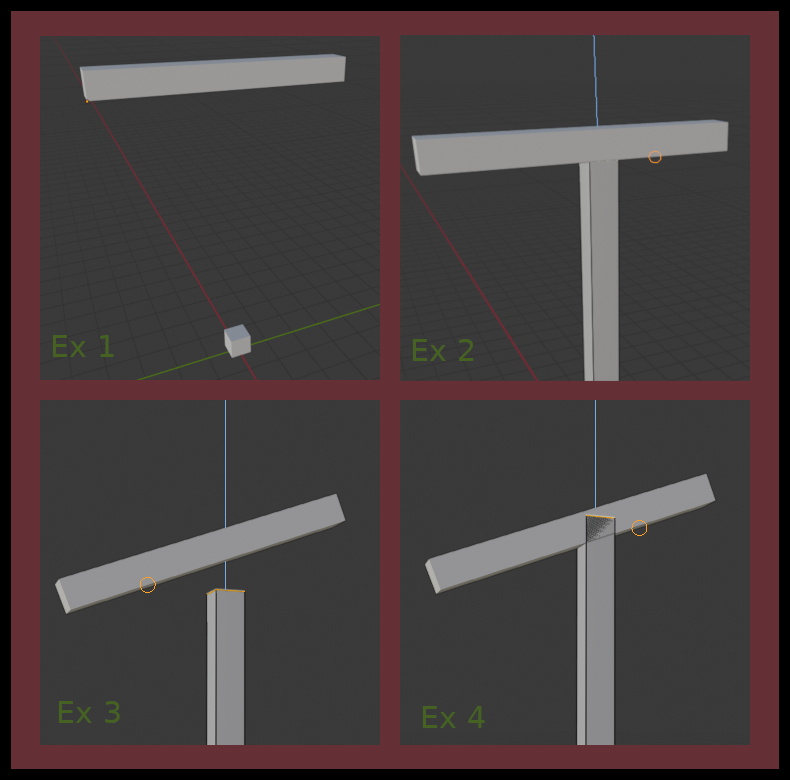
I would like to be able to snap to an intersection. I use blender to design things that I'm building so I need every intersection to be exact because I use it to figure out the dimension of the things I'm building. It's easy enough to make images that look fine for imagery but aren't 100% accurate but being that I'm extracting the dimension of the wood that i'm cutting from my models I need everything to be dead on. A problem I often have is if I'm trying to have a post meet up with an angled beam there's no way that I know of to snap a post precisely to it. If the beam is 90 degrees to the post and I'm starting as shown in example 1 I can tab into edit mode on my cube, do a face grab and with line snap selected and the axis locked to z I can snap my post exactly to the beam as shown in Example 2. However if the beam is angled and I enable line snap my cursor will snap to the line but the length of my post will very depending on where my cursor is on the line as shown in examples 3 and 4. Ideally the post corner would snap the the exact point where it intersects with the post. then I would like to be able to line grab other side of the post to be able to extend it up to meet with the beam. I've been using a Boolean modifier to get my desired end result of my post angle matching the beam but it would be nice to have better snap functionality for this type of task.
2 Comments
There is a way to do this using the TinyCad addon - "Extend Edge to Face". It's cumbersome but it does work and is very exact. I wish there was an easier way to extend an entire face to intersect another, matching the orientation...
This is how I do it (if nothing else this shows how cumbersome it is):
I've gotten used to doing it (and my macro helps a lot by switching back to face mode and then edge mode to auto deselect the last edge I did), but yeah, it could be easier.
dumb question, why is this marked 'done'? Perhaps i'm missing something.