
Improve the UX of the VSE menus?
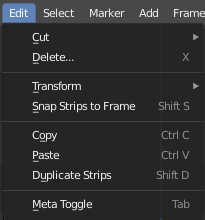
Even though the Strip menu has been cleaned up, it would be much more user-friendly to add an Edit menu or in other words, split the Strip menu in two.
This makes the Edit menu a nifty popup menu at mouse point:

Looking deeper into the menus, I found that some things could be improved and a few new functions could be added for a much more user-friendly UX. I collected my thoughts in this document: docs.google.com/document/d/1lVPxEgR5bnMr4jV-OkLifeU4v9Qp9x-eoCOWADn8u7I/edit
What do you think?
Here are the contents of the document
VSE HEADER MENUS SUGGESTIONS
Divide Strip Menu into two menus:
- Edit: for all repeated operations relating to the selected strips' relation to time.
- Strip: for all single operations relating to the what the strip is containing.
The advantage of a small Edit menu is, when a shortcut key is assigned(ex. Shift + E), it will work as a popup-menu accessible from mouse position. And it is more user-friendly to have the functions separated.
A suggestion of how to separate to two menus:


VIEW:
Timecode style:
Add existing operator: TimeCode Style and the select-able 5 Options.
Why: When editing, it seems logical to be able to change the timecode style in the View menu, and it may have to be changed several times during the editing process.
UI: View > TimeCode Style > 5 Options

EDIT:
Delete: Split the delete function into two functions:
- Existing: Remove selection(as Delete works now).
- New: Remove selection and move all strips to the left and thereby removing the gap.
Why: Extract/Ripple Delete is standard of every video-editing-software's toolset.
- UI: Edit > Delete > Lift(Avid/PPro/FCP naming).
- UI: Edit > Delete > Extract(Avid/PPro naming) or Ripple Delete(FCP naming).

Paste:
Split the Paste function into 3 functions:
- Existing: Paste into the first free channel at time cursor.
- New: Insert by splitting at time cursor in the same channel as active strip(or last selected), insert pasted strip by pushing all following strips in the same channel to the right.
- New: Overwrite by splitting at time cursor in the same channel as active strip(or last selected), and removing the part overwritten by the pasted clip, without moving the following strips.
Why: Insert/Overwrite is standard of every video-editing-software's toolset.
- UI: Edit > Paste
- UI: Edit > Insert(PPro naming) or Splice_in(Avid naming).
- UI: Edit > Overwrite(PPro and Avid naming).

Meta Toggle:
Existing: Toggle open/close meta strips
Why: Very useful existing function, but missing UI.
UI: Edit > Meta Toggle or Open/Close(What is the naming convention for toggle buttons?)

SELECT:
Channel(s):
Add new: Select all strips in the channels with one or more strips selected(active strip or last selected).
Why: Will simplify move, hide/unhide and mute/unmute of entire channels.
UI: Select > Channel(s)

Left/Right:
Join existing: Strips to the Left/Right - All Strips to the Left/Right.
Why: If there is no active strip then use the last selected-strip instead to combine the two functions.
- UI: Select > Strips > Left
- UI: Select > Strips > Right

Handles:
Make it a submenu.
UI: Select > Handles > Surrounding, Left, Right.

ADD & STRIP:
Move: "Crossfade Sounds" to Add > Transitions > Audio Crossfade(? or rename to something more meaningful in context)
Why: It belongs to the transitions.
UI: Add > Transitions > Audio Cross The menu entry should be enabled/disabled depending on selection.

FRAME:
Rename existing: Jump to Next/Previous Strip to Jump to Next/Previous Cut
Rename existing: Jump to Next/Previous Strip(Center) to Jump to Next/Previous Strip

Snap time-cursor to cut:
New: While dragging the time cursor with the mouse and pressing ex. Shift or Ctrl then snap to nearest unmuted/unhidden cut.
SHORTCUTS:
NB. Missing shortcut keys to most menus and some menu-entries(with repeated operations).
TOTAL:
Most of it is just UI brush-up stuff, shortcut keys and five simple new operators already included in VSEQF or Power Sequencer. Maybe we can have a few operators donated for the great course? :-)
4 Comments
Don´t leave out the fact that "G" move strips have to be changed, just like they did on Keyframe move for 2.8 , just LEFT click select and MOVE. Because managing anything that has to do with click and move should not be done trough long keyboard combinations "select+b+drag mouse, release, g, x, 45" <- ultra combo!
The code for the gif illustration above it just a rearrangement a UI script included in the latest 2.80 build. Just POC.
Some of this has been implemented, and could be marked as done.
This would probably work best as multiple separate proposals. There's a lot of good ideas here, but it's easier to address each one individually if they're posted on their own.