
Selection Context Menu for stacking "elements" on the same Positions (when it's hard to Select what you want)
I've just though of a plausibly consistent solution for improving this condition.
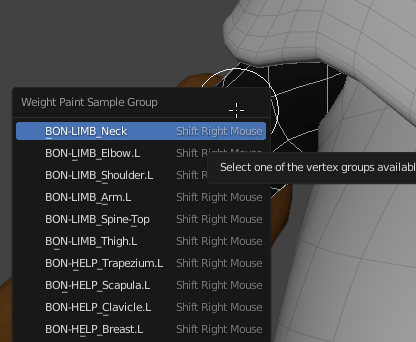
¿Why if we could have a new Selection Context Menu, that pops-up similarly as the already existing behavior of the command "Shift+RMB Click" on Weight Paint Mode when the Cursor hovers a Mesh (please, see screenshot), but, instead of searching for Vertex Groups, the Context Menu looks for similar "stacking elements" on that Clicked Position; on whatever Mode it is (e.g., Edit Mode, Object Mode…)?
So, for example, imagine if I have 2 equal Cube Mesh Objects; the original and a Duplicated, stacked exactly on the same Position. By using a new command, that would open up the Selection Context Menu, the name of the 2 stacking Cube Mesh Objects will appear on the list; so I could Selected precisely the one I want (instead of struggling) —maybe I could make from that list a multi-Selection even, but that would be an accessory feature.
Ideally, the stacking-in-place "elements" do not need to be sharing exactly and 'totally' the same whole 'volume' (like Duplicated Object, Bones, Vertices, etc., rested at the same spot), what I mean is: provide those "elements" are sharing the same World Coordinates for XYZ Location (on at least some portions of their 'volume'), so that there is not one "in front" and another "behind" for that pixel Clicked for a Selection on a certain Viewport angle, this would provide the conditions for the feature of the Selection Context Menu to show them both as Selectable. I do not know how the system operates internally, but I believe this would be an achievable, desirable behavior.
Another thing that might be relevant is that this new Selection Context Menu might need to be dependent on the "element category". For instance, if I'm on Edit Mode for a Mesh Object, the Selection Context Menu will depend not only on the Mesh elements that might be stacking, but on the currently Enabled Select Mode(s) (Vertex, Edge, Face). However, because Vertices, Edges and Faces have no Names (at least not as Bones, Objects and Vertex Groups do for example), I'm not sure how that would make more feasible on Edit Mode for certain Objects (e.g., Mesh Object, Curve Object); but on Object Mode it is certainly easier to implement, since all Objects have Names. Also, Bones (either on Edit Mode, Pose Mode or 'mixed' Weight Paint Mode with the Armature Object) have Names (as well as Vertex Groups), so the nearest improved functionality of my proposition would be to implement the Vertex Group functionality on Weight Paint Mode (the currently existing Weight Paint Sample Group Context Menu) to be able to also do the same, but for "stacking Bones". Then, This could grow into the Armature Object Edit and Pose Modes, and towards the Object Mode for all the "elements" there (Mesh Objects, Curve Objects, Light Objects, Cameras, Empty Objects, etc.).
Shift+RMB Click is a great command I think, but I'm not sure it would be available for all the other Modes… so I'll not make any proposition on the shortcut.
It's likely additional features to this proposition could be thought, but I hope that this receives some attention, because it probably would help nearly everywhere in Blender, because "elements" do stack in so many instances of the UI, and often this makes things more complicated than they could be. Thanks for your attention; Cya.
PS: If there is already this function in Blender and I do not know, please do tell me and if so sorry about the post.
1 Comment
Oops; looks like this feature already exists, at least I've seen it for stacking Bones on the same Spot: Alt+LMB Click. Sorry about that; maybe other domains in Blender still don't have it —meaning the feature might be still be expanded.
developer.blender.org/rB5e77ff79ccdaffb2df4d54c97f17359c017c9b85