
Sequencer Audio Editing Mode
Main Goal of the Proposal
The core idea appears to be: Separate video editing and audio editing into two specialized views while keeping them part of the same sequence, same scene, and same timeline.
Benefits could include:
Cleaner timelines. Easier audio management. Better organization for large projects. More professional audio workflows. Less channel clutter in the Sequencer.
In other words, instead of mixing video and audio strips in one view, Blender would offer two synchronized views of the same sequence:
Both modes would operate on the same underlying sequence data and remain synchronized unless the user explicitly disconnects the audio from the video.
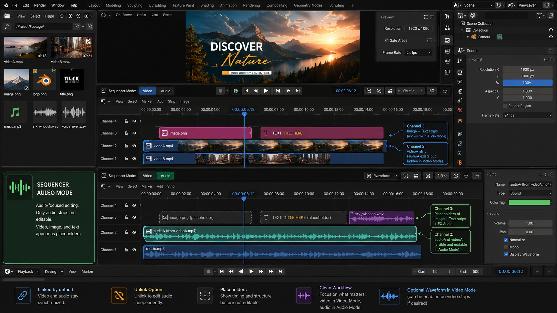
Current Blender Behavior :
In the current Video Sequence Editor (VSE), video and audio strips are displayed together in the same timeline. As projects become more complex with voiceovers, music, sound effects, and ambience tracks, the timeline can become crowded.
PROPOSED SOLUTION :
Sequencer Video Mode / Sequencer Audio Mode Both modes would belong to the same Sequencer window.
# SEQUENCER VIDEO MODE : the editor focuses on video editing. All strips except audio strips. Audio strips are hidden from direct editing. The timeline remains cleaner because audio strips are not displayed.
#
SEQUENCER AUDIO MODE
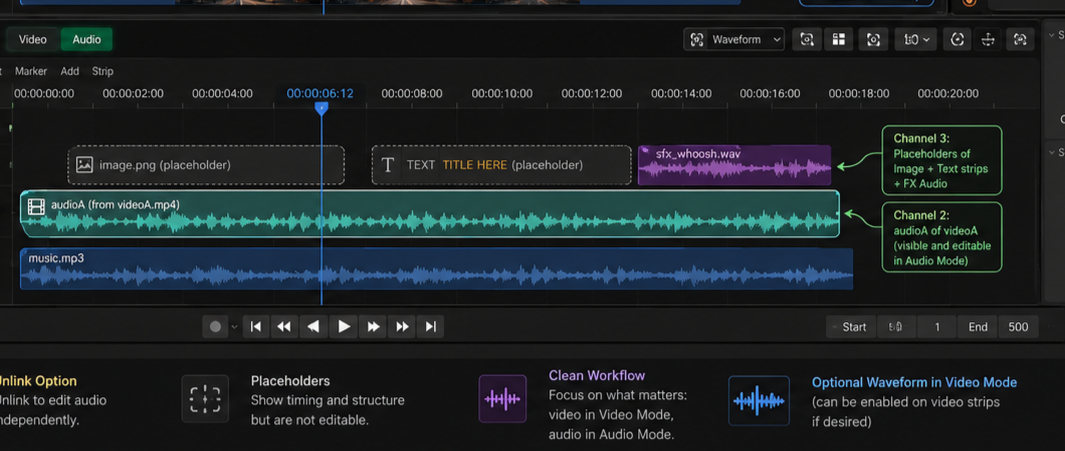
When switching to Sequencer Audio Mode, the same sequence is displayed from an audio perspective.
The user sees only Audio strips and placeholder for video mode's strips
Video strips are not editable here and appear as gray placeholders showing their timing and structure. These video strips placeholders act as a non-selectable background overlay providing visual context for audio editing.
#IMPORTANT : Audio strips can be added over placeholders
Importing a Video with Embedded Audio
Suppose a user imports a video containing audio. In SEQUENCER VIDEO MODE a video strip is created. Video Strip Channel 3. In SEQUENCER AUDIO MODE The corresponding audio strip is automatically created in the same Channel 3.
The video and audio belong to the same source but are displayed in their respective modes.
LINKED/CONNECT EDITING BEHAVIOR : By default, video and audio remain linked. If the user: Moves, Trims, Cuts the video strip, the associated audio strip receives the same operation automatically. THIS MAINTAINS SYNCHRONISATION. The user can choose to disconnect or unlink them. After unlinking/disconnecting: Both can be moved and cut independently.
This is useful for advanced editing workflows.
#Optional Waveform Display in Sequencer Video Mode Even though the actual audio strip exists in Sequencer Audio Mode, the video strip can optionally display its waveform. This provides visual audio feedback without requiring audio strips to occupy the Sequencer timeline.
0 Comments