
Context Menu Hide
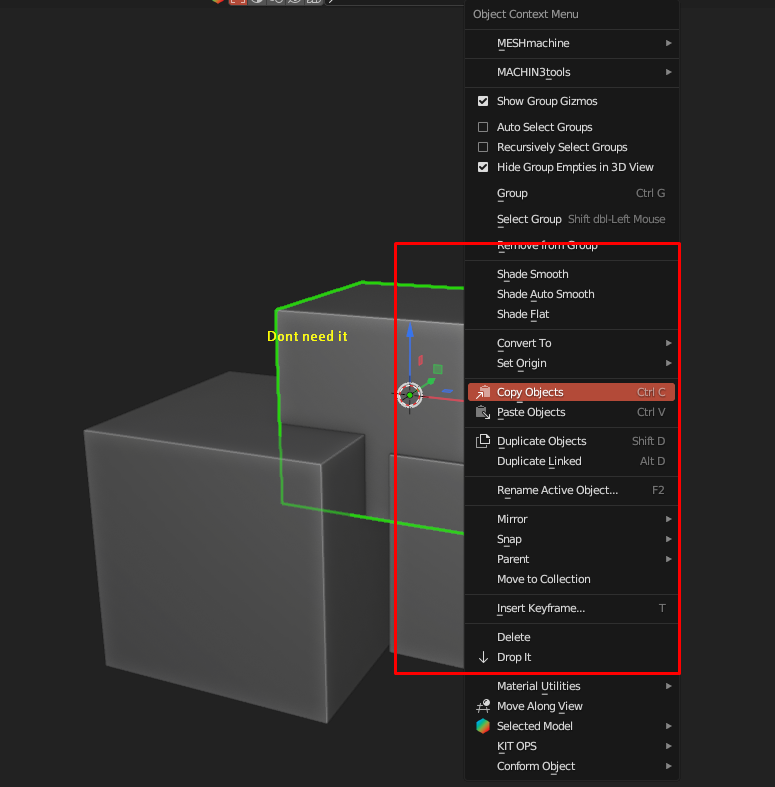
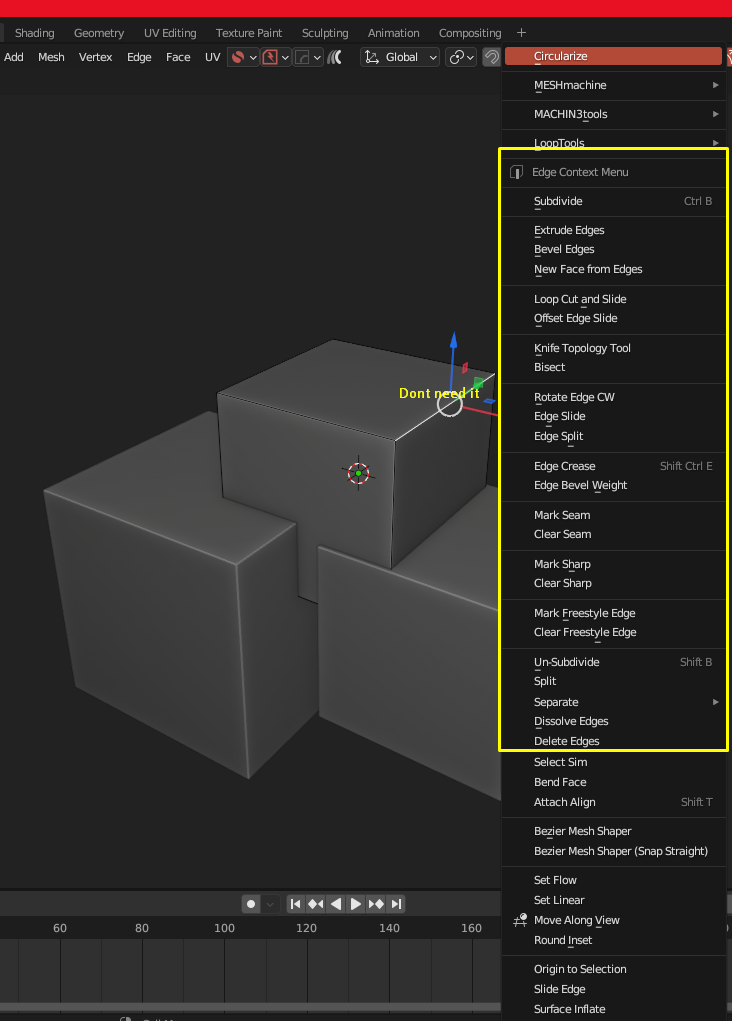
I would like to propose that you can hide the options in the context menu to better organize the menu and have access to the options that are more recurrent.
The menu is very congested and the options that have a hotkey assigned do not need to appear in that menu, in the same way that when you have a large number of addons it becomes very difficult to find the options that are really used on a recurring basis.
One way to keep them handy could be to create a section called hidden tools, giving the possibility to reset the options if desired.
4 Comments
Your screenshots have buttons and options that I've never seen before. It seems that you're using many add-ons that are all fighting for space in the context menu.
What you describe could be done with the Quick Favorites menu, if we had a proper editor for it.
The default menu, without addons that add tons of items to it, is not congested at all.
Object mode:
Edit mode - edge selection:
To me, it looks like you are using many addons that use the same menu and/or don't use sub-menus as much as they should.
This sounds more like an oversight from both addons developers and Blender's own UI guidelines.
IMHO any time an addon adds new UI elements to any area shared with other things, you should be very careful of how much space you use. Even for one single item, if it's somewhere already crowded: many other one-items additions from other addons will cause issues, and it is therefore probably better to find a better place - or better : let the user control where the new GUIs are injected.
It would be awesome if Blender's UI simply allowed to customize anything, drag-and-drop any widgets anywhere we want... But not a small puddle to jump.
You can use the quick favorites menu in the meantime, also make use of workspaces to enable only the addons you need in each workspaces' usage scenario.
A lot of the things you want to hide don't have hotkeys assigned AFAIK
Or add a function to collapse the menu and automatically put newly added items into the submenu. Just like the Asset Browser, menu items that are not individually specified are placed in the "Other" submenu