
Hotkeys on viewport
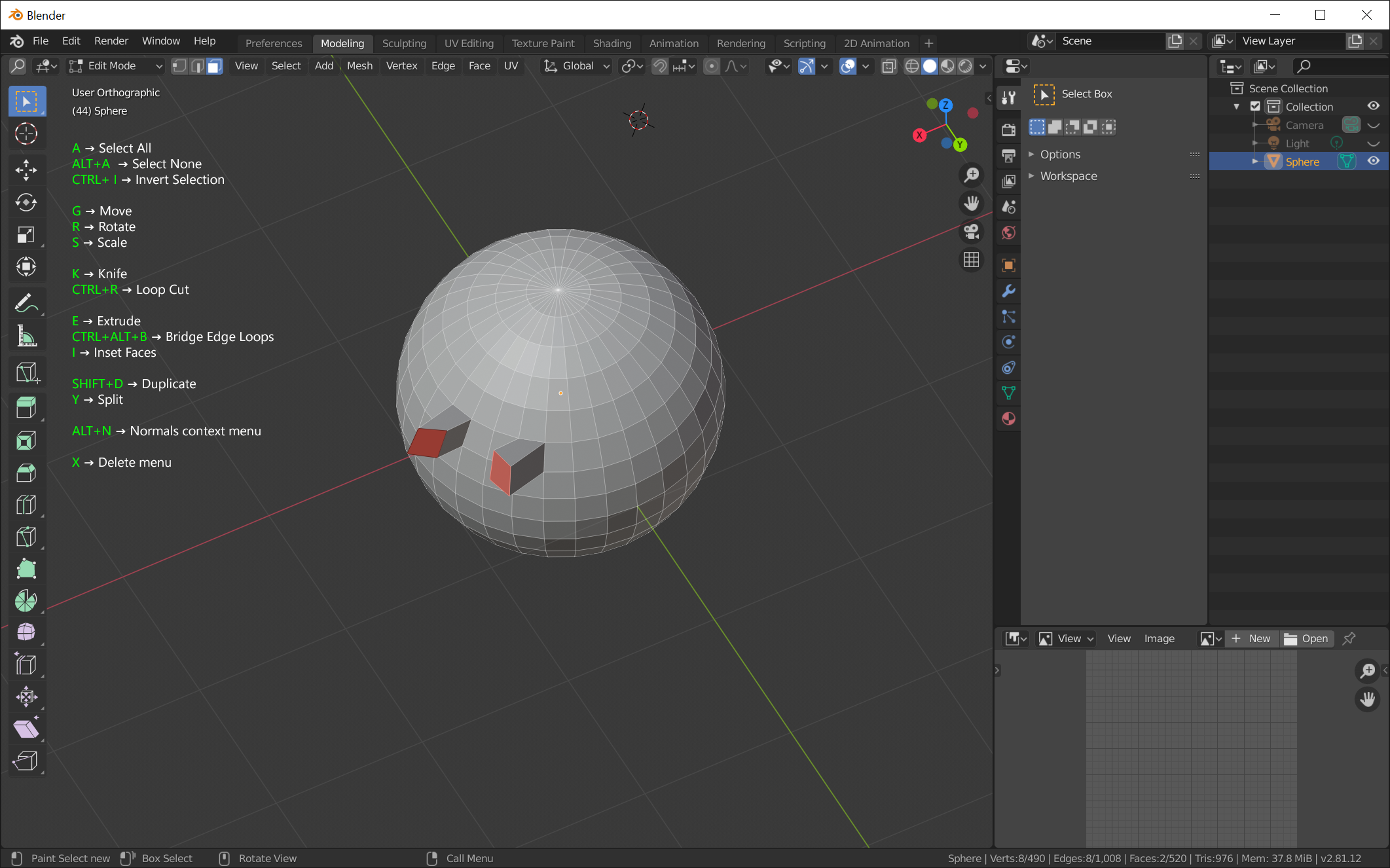
It would be cool if someone could create an add-on that would display available hotkeys directly on the viewport (in a corner for example). The displayed hotkeys would be relation to the context of the selection.
Blender has become more user-friendly thanks to the version 2.80 and its new interface, but new Blender users still have to learn many hotkeys in order to be efficient in 3D modelling. That is why I think that it might be interesting to see useful hotkeys (in context) directly on the 3Dview.
This is something that I think would be beneficial to Blender 101 but also for new Blender users who want to learn hotkeys (and there are many).

Use cases:
In object mode, no object selected, would be shown:
- A → Select All
- Spacebar → Play Animation
- F12 → Render Image
- ...
In object mode, one object selected:
- A → Select All
- ALT+A → Select None
- CTRL+ I → Invert Selection
- CTRL+M → Interactive Mirror
- X → Delete
- ...
In object mode, two objects selected:
- A → Select All
- ALT+A → Select None
- CTRL+ I → Invert Selection
- SHIFT+D → Duplicate
- X → Delete
- ...
In edit mode, two edges are selected:
- A → Select All
- ALT+A → Select None
- CTRL+ I → Invert Selection
- G → Move
- R → Rotate
- S → Scale
- E → Extrude
- F → New Edge/Face from vertices
- CTRL+R → Add loop
- CTRL+B → Bevel edges
- X → Delete
- ...
In edit mode, three vertices are selected:
- A → Select All
- ALT+A → Select None
- CTRL+ I → Invert Selection
- E → Extrude
- F → New Edge/Face from vertices
- ALT+M → Merge vertices
- X → Delete
- ...
In edit mode, several faces selected:
- A → Select All
- ALT+A → Select None
- CTRL+ I → Invert Selection
- G → Move
- R → Rotate
- S → Scale
- K → Knife
- CTRL+R → Loop Cut
- E → Extrude
- CTRL+ALT+B → Bridge Edge Loops
- I → Inset Faces
- SHIFT+D → Duplicate Y → Split
- ALT+N → Normals context menu
- X → Delete menu
- ...
These are just examples of hotkeys that could be displayed according to the context of the selection. Of course, not all hotkeys should be displayed but it would be useful to show the most used ones, or enough hotkeys to be able to finish a rudimentary 3D model.
Ideally, the displayed hotkeys would be in sync with the keymap preferences; the add-on would display hotkeys that the user has modified (if he/she has), else it would display the default ones.
Another nice option would be to let the user choose which hotkeys to hide (those that are not wanted anymore by the user, especially if he/she knows them well already).
There could also be other options to set the position of the "overlay frame" that contains the hotkeys, the font size and color...
I tend to think that it is more convenient to have this information directly under the eyes, rather than being "obliged" to open menus again and again.
8 Comments
Would it be possible to have new editor type where context relevant hotkeys are listed. This could be blended in or out as needed. It would be super useful for users that want to learn to use shortcuts.
The difficulty with this idea is that the list of potential hotkeys (even context-sensitive ones) is so large in a lot of cases that you could easily fill up the whole 3D Viewport with an overlay of what's available.
Probably best to just use the menus and note the hotkeys that are labeled there.
* @Jason van Gumster *
That is why by default, only the more useful (more commonly used) modelling hotkeys should be displayed, not all available hotkeys.
Also, there could be an option to hide the hotkey that are no longer needed.
I like the idea though not this specific implementation. I'd be happy with at least a searchable sheet containing all shortcuts existing in blender. Right now there is nowhere something similar to this for the default or the industry standard keymap: docs.google.com/spreadsheets/d/1I4qKqKsJJgOAZEPIFWc8r8XnCyc3seMPfoui_ThmXC8/edit .
Even this custom one is incomplete but still a good base and well organized.
* @Ge Ro * Alternatively, the addon "Is Key Free" can help :
archive.blender.org/wiki/index.php/Extensions:2.6/Py/Scripts/Development/IsKeyFree/
Nowadays people don't like learning hotkeys at all?
* @impacman * It's not that people don't like learning hotkeys, it's just that hotkeys are hidden in menus and it's not always easy to know them.
I think that showing them directly on the viewport (as an option) would reallly increase their discoverability.
* @ xan2622 * I agree. I think it's a good idea if it's not an implementation in a Blender then an addon.