
Cycles>Camera>Panoramic>Center Cylindrical + Compositing Effects = don't work
Currently compositing effects do not work with the Cycles>Camera>Panoramic>Center Cylindrical option. This should be an easy fix. The compositing options don't need to be "cylindrical aware".
Compositing works on rendered images, not the 3d scene. This means that effects like Glare do not take into account the "seamless edge" of the cylindrical camera.
This should be easy to fix and can be done by placing an extra image to the left and right of the final image before the effects are applied so that the effects can pull in pixels that are "incoming" from that side.
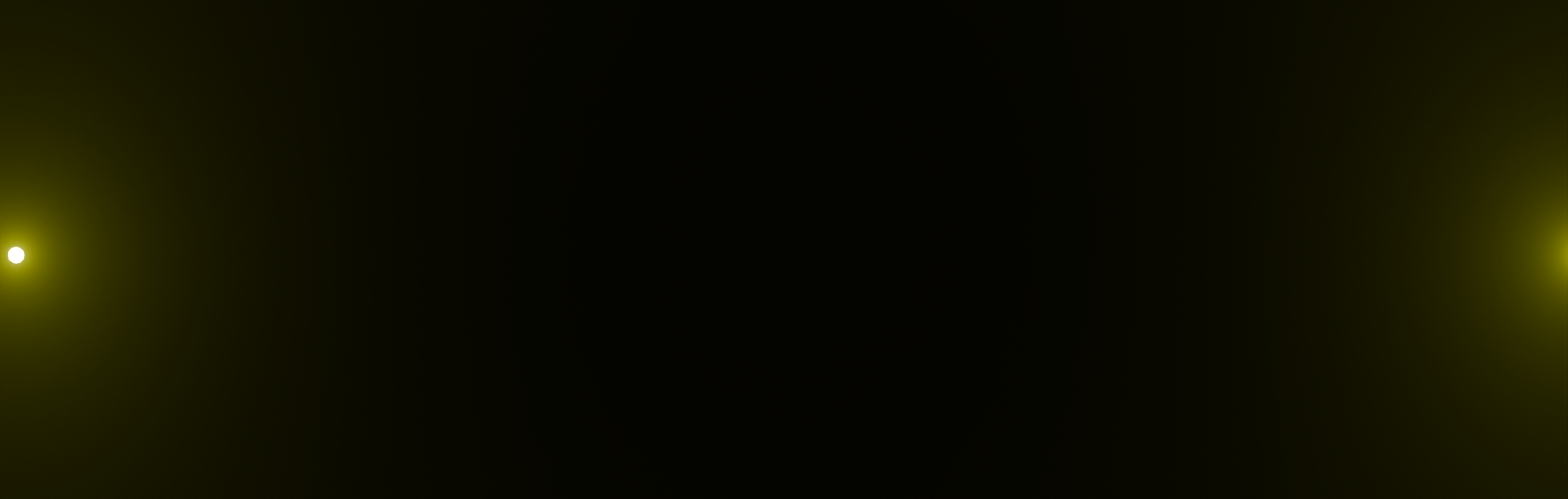
For example, if I have a bright light on the left "edge" of my rendered image (close to 180 degrees off center for a Cylindrical Camera) there will not be any Glare effect on the right side of my image despite the fact that the "light" should be there. By duplicating the rendered image to the left and right the compositor has the pixels to work with to produce a proper "seamless" Glare (or other effects).
The images I attached show a broken Glare composite (should be a Glare effect on both the left and right edges!), a "fixed" Glare using a World Volume Scatter (super slow to render and needs more tweaking), and a "fixed" version I made using After Effects by adding a duplicate image to the left and right to "repeat pixels" for the Glow effect to have something to pick up (I have not found an easy way to accurately and consitently duplicate the look that Blender gets with its compositing).


0 Comments