
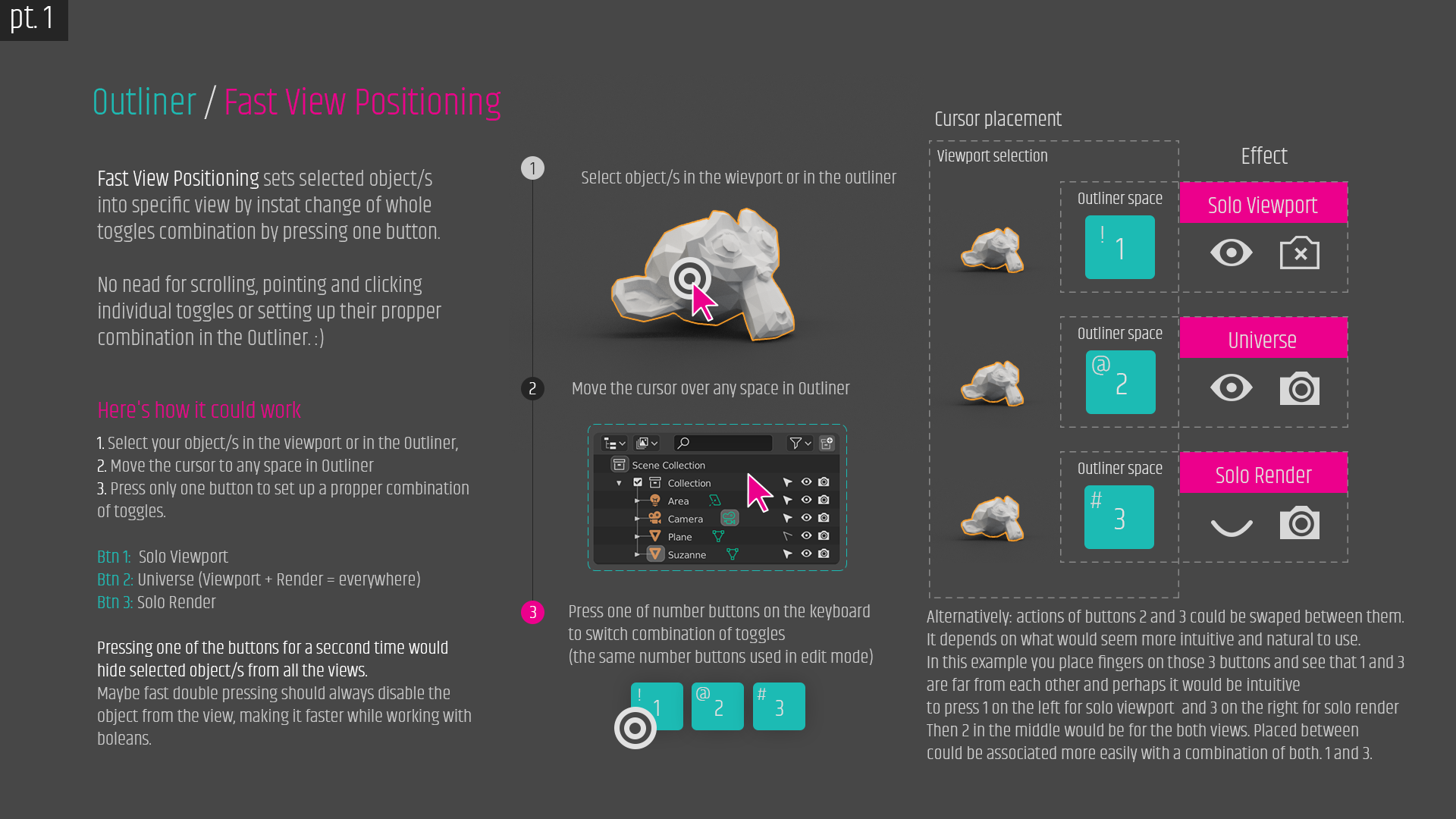
OUTLINER: Fast Positioning Toggles - for selected objets. SOLO Mode Views :) No more time consuming setups :)
Hi guys!! By this way you can change every view mode of your selected object/s in just a second! Don't have to find your selected object in the Outliner when you selected it in the viewport. You could give it a specific visibility just by pressing one button. :D This could be optional so you could turn this option on and off in restriction toggles panel.
So simple and fast! Everything on the graphic :) Have a good time :)
6 Comments
Here is an expanded version: {attachment 02_Fast_Positioning_toggles_solo_mode_views_Pt_2_png}
ONLY OPTIONAL: For those who would like to be sure of their choice of view for selected objects, one more option could be added: Sound! :)
A few loose examples of sounds after pressing the numeric keys with the cursor located in the Outliner box space.
1 - solo viewport - you can hear a low tone just like playing bagpipes.
3 - high sound like tall bagpipes
2 - a mix of both: Viewport + render - the sound would be mixed - harmonic.
Four - (seccond press of selected view or fast double press, or maybe fast double press of any of them to avoid accidental disabling after enabling the specific view) - maybe some very short sound with a falling tone - like turning off a device.
Other example: a nice female voice like from some game in which artificial intelligence - a spaceship computer would speaks that kind of voice:
1 - view / viewport (this would be SOLO Viewport)
2 - universe / everywhere / all
3 - render
4 - off / disabled
Nice one maybe as some possible actions +1.
But as for me - this keys is too close to " work " hand to use it for such things, I even remap " ` " from default something to free it for my own " Snapping " PIE :). Such " hot " button = for fast most often actions / PIE lot of action.
* @IIIFGIII * Sure :) Everyone has their own habits and tastes :) How do you play games? ;P For me its almost like gaming by using AWSD keys and a mouse. And brother bellive me I have a quite big hand. For the firs time it was very hard to find those keys but after some time they become like a second nature. Although I have not played for a long time, I can find them in the dark and still do it automatically; 1,2,3 could be even easier cause keyboard has a bigger gap between 1,2,3 and F1, F2, F3. Should be easier to find them and train a habit. Placing three fingers on them allmost like with AWSD. When I tested it I thought of them as left - viewport, right - render and middle - everything and I feel like its quite intuitive. Check it. Its like reading from left to right, from modeling in viewport to the final effect in render. Anyway thanks for sharing this because It's easy to forget that it is not so easy for everyone to learn or find some buttons just like that. Especially when someone comes from another 3D software. :) I saw you know Max and thanks for your involvement, I saw some of your ideas that I would like to see myself in a blender.
actions: Alt+1,2,3 maybe :) ? Can't set it in the key map. There's no option for changing toggles by keyboard shortcuts. Only H, Shift + H for hiding the object. :/
it's looks like very easy to implement via addon. But this hotkeys assigned to collections
* @Michail Soluyanov * Well your right, I've checked it couple of times and after a third time It worked in 2.80. Maybe 1,2,3 could work for Collections in the Outliner but with Shift and Alt - Shift is working like this allready but Alt +1,2,3... could disable collections like it does it now without Alt.
In that way 1,2,,3 would be free to use. Probably fast positioning would be used much more frequently than disabling some of the collections. Going that way 1,2,3 could be given to fast positioning toggles and in that way maybe just without hovering the cursor over the Outliner. :)
Other way is to leave it as it is a this moment and for the fast positioning assign Alt + 1,2,3. - maybe allso without even hovering a cursor over Outliner. It would be okey but slower than pushing only 1,2,3. Let's remember that it could be used more often than disabling collections and then, it could cause frequent mistakes. Imagine: Someone wants to position the object quickly and here some collection disappears because he didn't press the Alt button completely.
The ability to change the view combination with the 1,2,3 buttons while the cursor would be in the outliner field would not interfere with edit mode - while the cursor would be in the viewport field. Maybe this option could be working only when the object is not edited. Would have to check, what is better. Also this option could give the ability of changing view for many objects at once in the outliner and in the viewport which allso speed up the workflow in many cases :)