
"Local Axis Snap," View transformation mode
Currently we have a couple really nice options when it comes to moving things around the 3D viewport. We can move them according to the global axis, the local axis, or the view axis. These are great for most tasks.
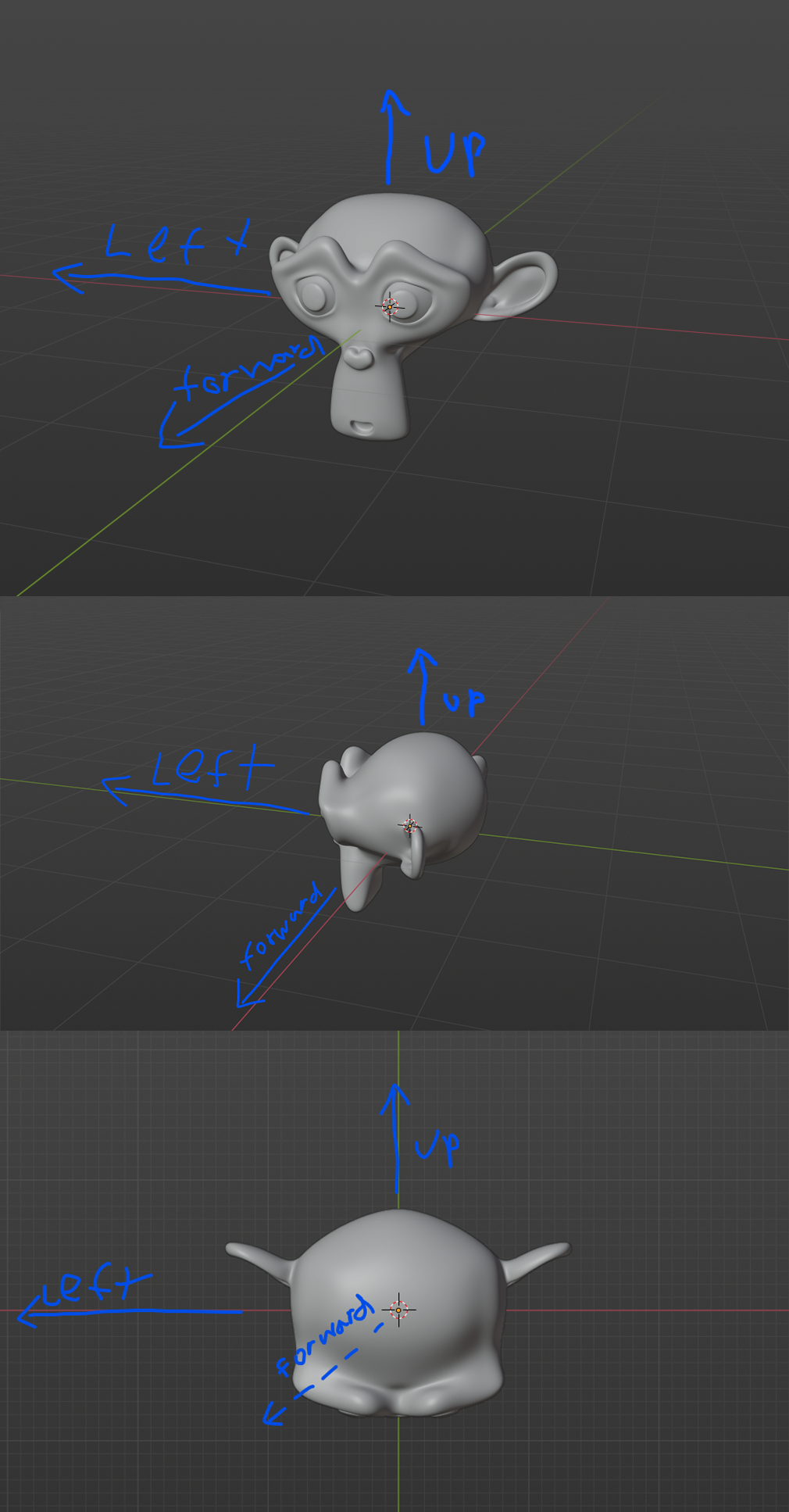
Something I run into a lot though is when I want to move things along the global XYZ axis, but when I have been spinning around a lot, I hit the wrong axis hotkeys constantly. What I think would be a helpful addition would be a "Local Axis Snap," option, which serves the goal of keeping "right," right, "left," left, and "up," up by rotating the axis along the view similar to "view," mode, but instead of keeping it locked 100% to the view, it snaps the axis to the nearest global axis orientation.
Hotkeys would be bound to to the conceptual up/left/right orientations EX: Z would always be up/down on the screen no matter which way you were facing.
The image should provide a little context as to what I'm trying to suggest.
2 Comments
Agreed- Modo does this by way of workplanes. If you have a workplane set and hit the hotkey for "Top" it orients the view to the top of that workplane, so you can do things like radial arrays on wheels that are not aligned to a major axis, etc. Extremely useful.
To that end I actually wrote my own camera hotkey operators to replace the default numpad ops to do exactly what you're describing, only instead of using the local axis as a rule, it's sensitive to the transformation orientation. If it's set to global, it works the way it does out of the box, local does what you're describing, and on and on. For example, I can go into edit mode, set the transformation orientation to 'normal', then select a face and hit the hotkey for "Top" and the camera will change to an orthographic view of the top of the selected face. Ideally, something like this is built into blender because there's no clean way for me to have view aligned grids, things like that.
You can already do this more or less - hit g, start moving the object in the direction you want, and click the middle mouse button - it will constrain to the axis you moved in.