
Better way than X,Y,Z to choose an axis for move and scale transformation
Pressing X, Y, Z many times until I get the direction I want always bothered me.
Also I find the middle mouse axis constraining a bit confusing and requires to many steps for something that simple.
So I wrote a python tool, just a proof of concept.
It covers the functionality of all X, Y, Z and middle mouse button for constraining the movement and scale with just one hotkey.
You hold a key and click and drag anywhere in the viewport in the direction you would like to move/scale the object.
It compares the direction of your mouse movement vector to the object's current axises and chooses the closest one.
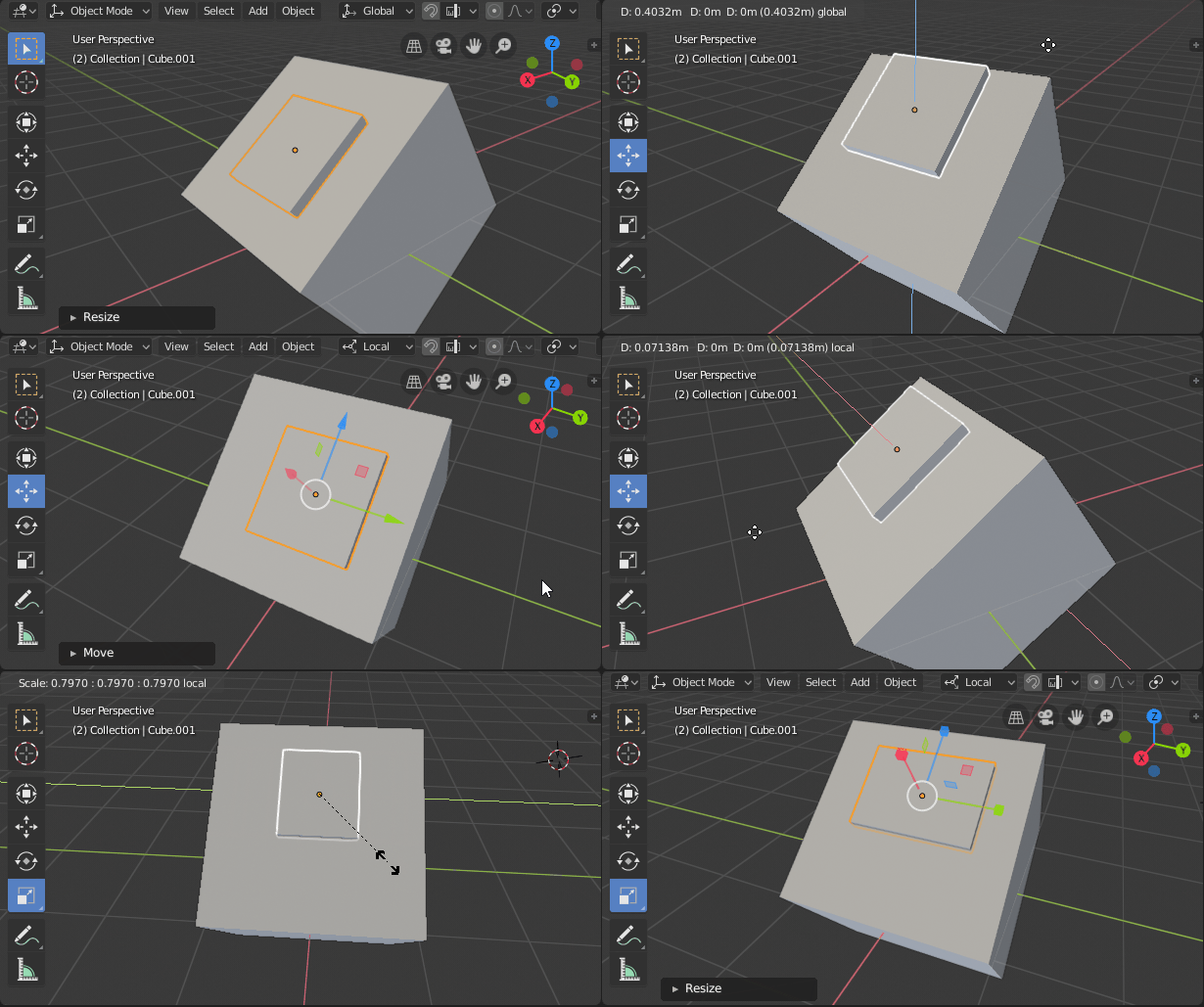 All movement and scale here is done with just one key. By default you would need to tap X,Y,Z dozens of times.
In my opinion this is very efficient and intuitive. It saves a lot of time positioning and scaling objects/components.
There is no need to change or remove the current functionality of X, Y, Z keys.
I'm not a programmer and my script is just a proof of concept. But I would love to see this properly implemented in Blender.
About the script:
!!! Because of some changes made in the latest Blender 2.8 beta the script currently dosn't work.
I think it works enough so one could try it, but as I said it's in the proof of concept state, not tested, bugy.
Currently it should work in Object and Edit Mesh modes, in Global and Local orientation (it doesn't work in Normal mode currently). And it works only on Blender 2.8
Also be careful, it's addictive! :)
Download Here
Here is how to install it:
- Go to Edit->Preferences->Add-ons
- Install Add-on from File and choose os_transform.py file.
- In the Add-ons categories now an Oskar category should show up.
- Click on it and enable the add-on.
- Now in the Input section under 3D View->3D View (Global) at the bottom click Add New and type this: <code>os.transform_to_mouse_direction</code>
- Assign a mouse button and a shortcut key. I can't recommend one because I'm not using the default keys.
But for testing you can add Shift + Left Mouse
- Now select an object and enable the Move or Scale gizmo tools.
- Hold Shift and click and drag in some direction.
If there is someone with more experience interested in making this tool better, please share your awesome result with us :)
8 Comments
What's the script like? Care to share?
@ondraise15: I think it works enough so one could try it, but as I said it's in the proof of concept state, not tested, bugy.
Currently it should work in Object and Edit Mesh modes, in Global and Local orientation (it doesn't work in Normal mode currently). And it works only on Blender 2.8
Also be careful, it's addictive! :)
Download Here
Here is how to install it:
But for testing you can add Shift + Left Mouse
If there is someone with more experience interested in making this tool better, please share your awesome result with us :)
(I couldn't find how Blender defines the gizmo orientation in Normal mode when multiple components of a mesh are selected. Tried to average the normals of the selected edges/faces/vertices, but no luck)
do u have an update for last version ? since it give me error. I am not sure if already implemented , but I will be glad if there is an update for it. thanks
Hello Oskar ! That script seems amazing ! Why is it not working on more recent blender versions ? I see your post is 3 years old, did you update it ? Is there another way to make blender act like that these days ? It looks really awesome btw :)
There should be indicators showing which coordinates (and axis) is used:
@postolka: I think it won't be necessary, because it's using exactly the directions of the gizmo you see currently.
@Oskar: You can have object rotated by 1° by X and then trying to move it by Z axis - you wouldn't know, if you are moving using local or global coordinates (or 91° for that matter).
@postolka: It checks what is the current orientation set by the user. If it's Global or Local and uses that. I posted the script. You should try it.