
Better Expressions for Drivers
To see this proposal in action, check out my video or try it for yourself with my sample files . You will see that this workflow is much faster than the existing drivers system and in some ways is easier use and to find the drivers that are being used to drive a property.
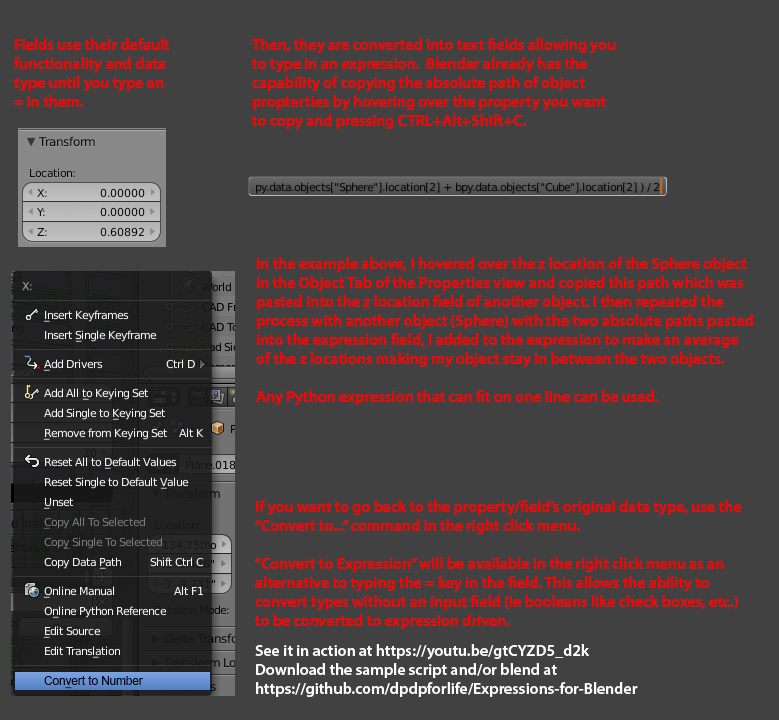
I'm about to get really nerdy in this explanation, so if you're more of the artistic type, check the links above or the image below for a simplified explanation of what I'm looking to accomplish.
I personally think that the methods for setting up drivers takes too many clicks. It is very convoluted system that requires jumping back and forth between multiple editors. Also the expressions and driver types that can be used is pretty limited unless you work very hard to get to the properties you're looking to use as variables. I propose that setting up a driver could work like expressions in the great, but deceased, Shake or the very much alive and well Excel. In Shake it was easy to get the address to a value that you want to reference in an expression and simply type that into the field that you wanted to control. So to reference a mask's y position to drive the alpha value you would use an expression that looks something like this: "mask01.position.y/1080". This expression would be typed into the alpha value field.
In excel, this is as simple as typing the = sign and then typing in cell addresses or simply clicking on a cell. So your expression may look something like this: "=(C2+C3)/2"
I want to bring this functionality to Blender. The absolute path to any property can be copied by hovering over a field in the properties panel and pressing CTRL+Shift+Alt+C. This gives a verbose address. For instance hovering over an object's Z Location in the Transform Pane of the Object tab gives this address: "bpy.data.objects["Cube.001"].location[2]". You can paste this directly into the python console or a script.
It's pretty straight forward to evaluate an expression using the python eval() function. This means that anything typed into a number or text field could be used. It could be simple number (1.1), it could be a math expression (bpy.data.objects["Cube.001"].location[2]+2), it could even be a more complex expression like a ternary operator (2.0 if bpy.data.objects["Cube"].show_name==True else 0.0). Basically any expression that can fit on a single line of python will work.
Looking at these expressions, this may seem like it may be too advanced for some, but remember these addresses are simply copied and pasted.
To make these more readable, it may be nice to be able to create variable names right in the field you are trying to reference, so in my example above, instead of copying the address of the Cube.001 z location, you could type in the Cube.001 z field:"var1=". This number field would still respond the same way as a normal number field except it now has a variable associated with it. This would shorten the expression above to (var1+2) since the user has control over the variable name it could be as short or as descriptive as needed. There are also proposals here in rightclickselect.com that suggest a drag and drop method for creating drivers. This could be combined with my proposal as an easy way to set up initial drivers and variable while still having the power to use expression to further the capabilities.
It is possible with the current drivers system to paste in copied absolute addresses and use them in expressions, but the using multiple addresses in an expression seems to cause issues and doesn't always update when a driving object is manipulated. Also, more complex expressions like ternaries are not recognized.
To use the sample blend file linked above, press the run script button on the bottom of the text editor. The Driven Transforms pane will now show up at the bottom of your object tab in the properties editor. Here you can type any expression you want to drive the selected object's x, y, and z position. Imagine that these are standard numeric fields with the buttons used to increment the numbers just like in the transform pane. That is, until you type an expression in the field. Then they are magically transformed.
Here are some expressions to try in the Cube.001 myZ field:
Just a simple number
1.1
Copy an objects z location
bpy.data.objects["Cube"].location[2]
Move an object half the distance of another object's rotation
bpy.data.objects["Cube"].rotation_euler[2]/2
Move the same distance as another object but only in a positive direction
bpy.data.objects["Cube"].location[2]/(1 if bpy.data.objects["Cube"].location[2]>0 else (-1))
All kinds of properties can be used including Boolean properties. Move an object based on whether it's Name is displayed or not
2.5 if bpy.data.objects["Cube.001"].show_name==True else 0.0
3 Comments
I am more artistic and my eyes bleeding by red blurred text…
I like the ability to directly support expressions in any numeric field. Houdini is set up like that and it's quite nice.
That said, I also like the ability to have driver control using f-curves. Curve visualization is often easier to understand at a glance than an expression is. I wonder if there's a way we can support both workflows.
@Jason van Gumster: It would be nice to have both workflows supported. Right now if you right click in a field and Add Driver>Manually Create Later, you can enter an expression and this shows up in the Drivers view with an f-curve. Unfortunately the expression doesn't automatically update unless you create at least one variable of a Single Property type and point it to the object you've referenced. You don't even have to put anything in the path field. You don't even have to reference the variable in the expression. So if this could happen automatically when you type in an expression, we would have the best of both worlds.