
Viewport Diagnostics Overlay - BCON UI Proposal
VIDEO PROPOSAL - From 3:06-8:30
THE PROBLEM
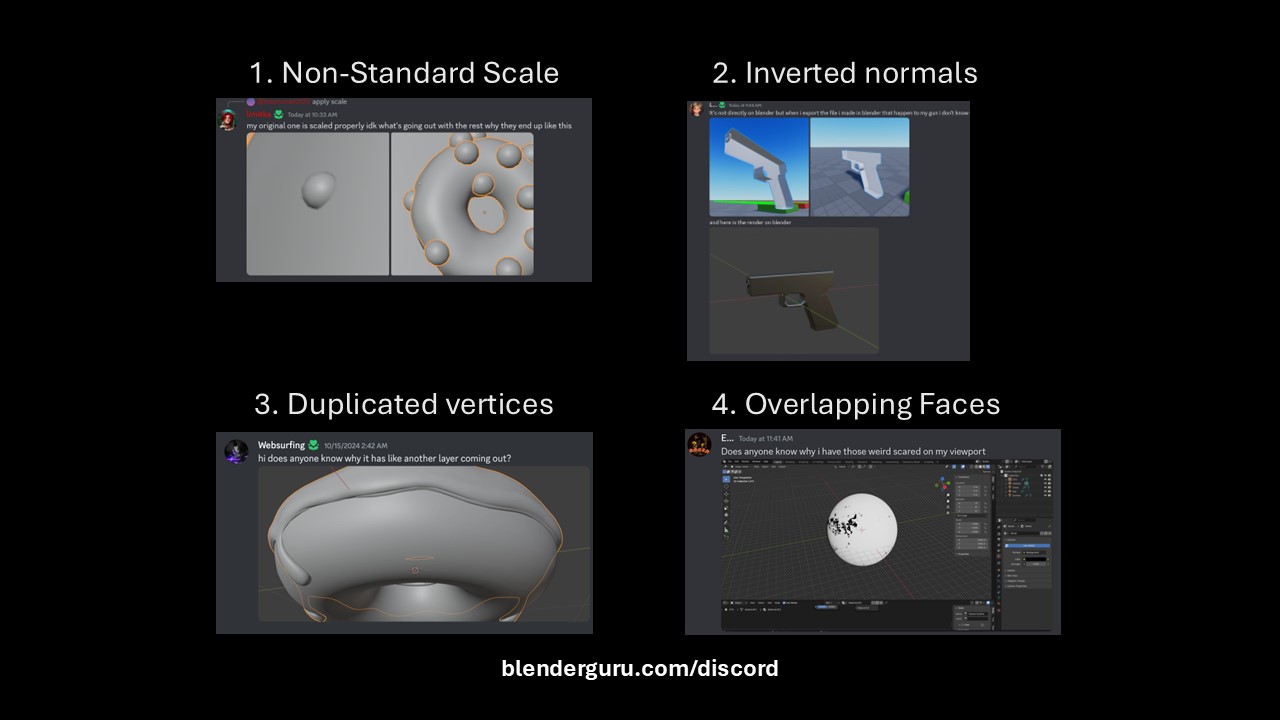
A disproportionate amount of user issues stem from just 4 causes:
- Non-Standard Scale (X, Y, Z is not 1)
- Inverted Normals
- Duplicated Vertices
- Overlapping faces
These issues lead to many secondary issues that aren't obvious to everyone.
THE PROPOSED SOLUTION
A "Diagnostics" shelf, added to the existing viewport overlay that highlights these issues to the user.
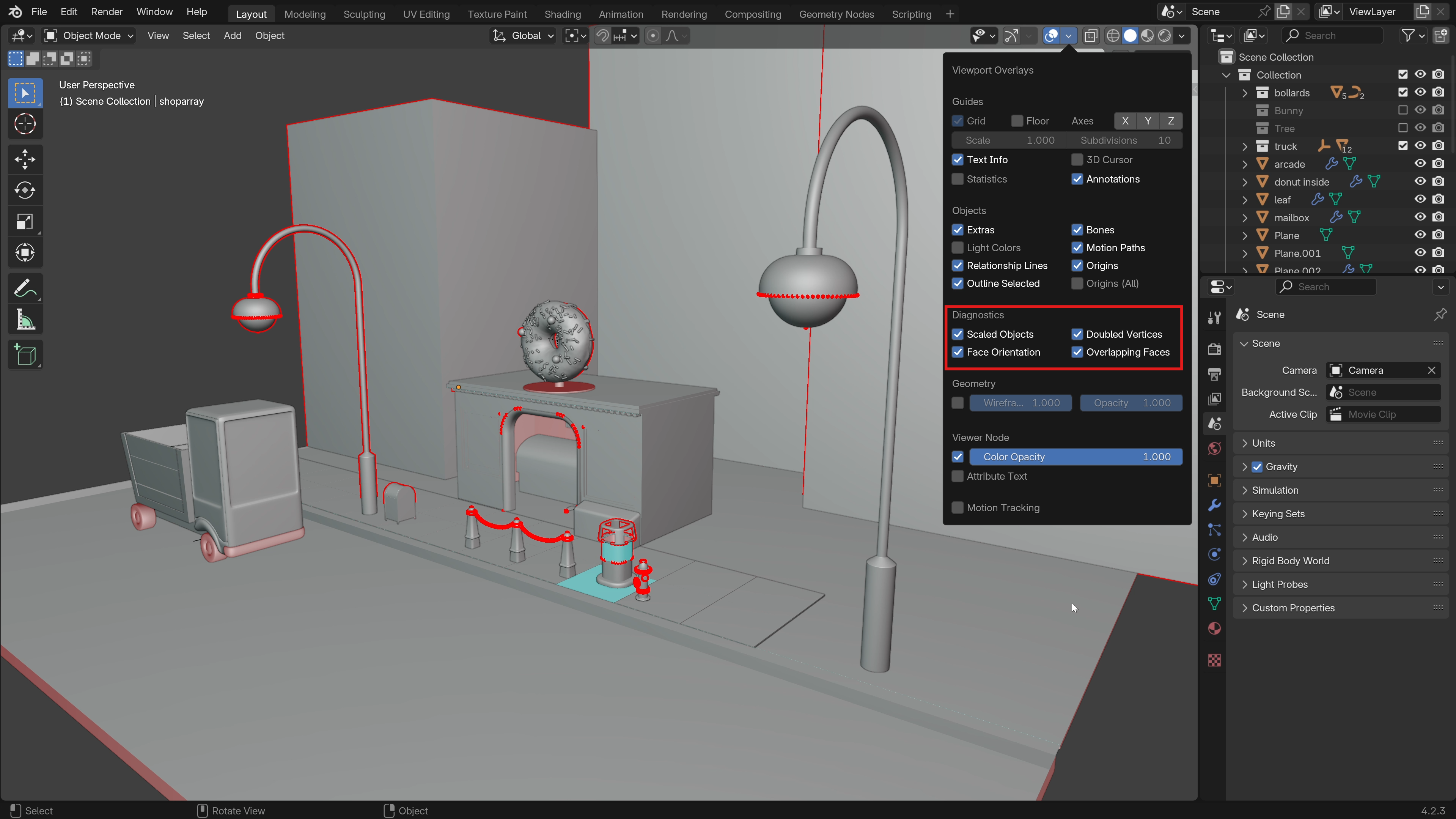
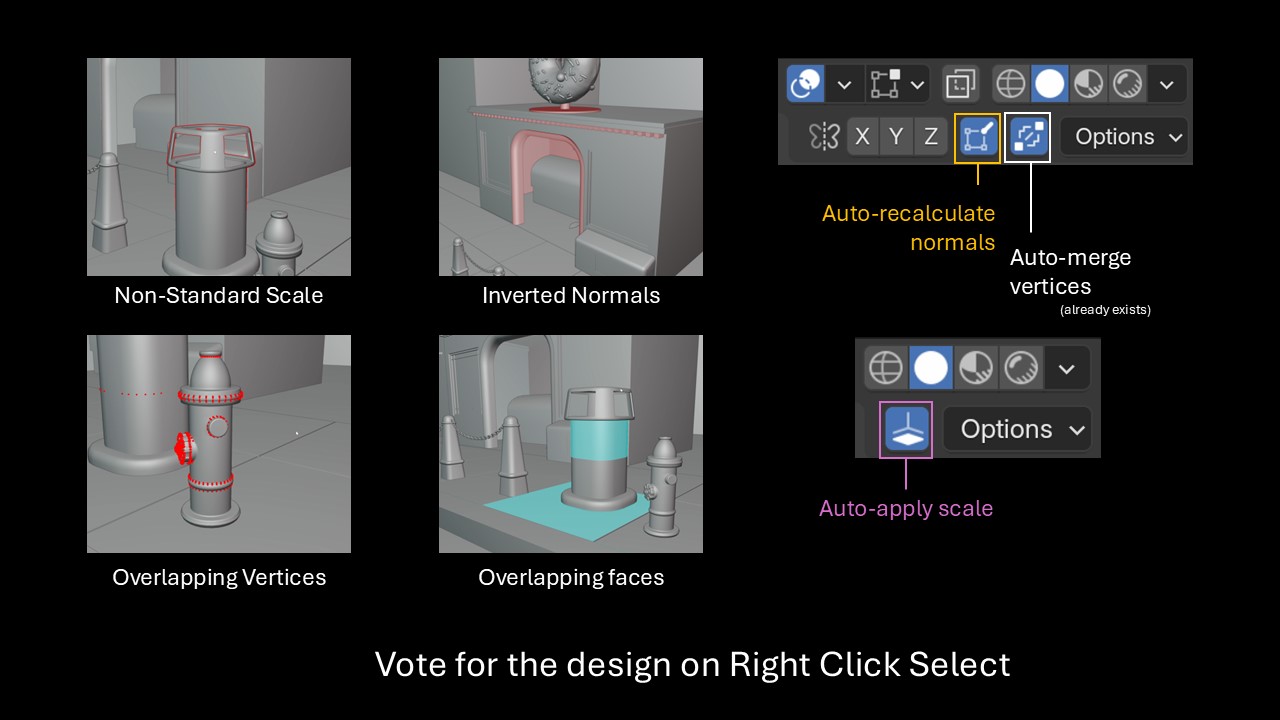
- Non-Standard Scale - Any object with a scale value that isn't exactly 1 on XYZ is highlighted. My original proposal was to add an outline, but I've since realized this wouldn't be visible on big meshes that fill the frame (like a ground object). So a simple, all-over mesh coloring is probably better. I propose orange (at 30% opacity)
- Inverted Normals - Identical to the Face Orientation overlay, but from a theme level, just disable the blue coloring. This is preferred by users (and some tutorials even suggest it) because then you can leave it on while you work instead of the blue color obscuring things.
- Duplicated Vertices - Vertices that are too close would be highlighted (I propose dark green at 30% opacity). This would be visible in both edit mode and object mode. A "distance" control would likely be needed.
- Overlapping faces - Any two faces that are near to each other are highlighted (I propose yellow at 30% opacity). A distance control would also be needed.
Plus, buttons to auto-apply scale after any scaling operation, and recalculate normals after exiting edit mode.
A working version of the addon: drive.google.com/file/d/1FysAUYhYSd8uwDNoXJpQKYwSnFXeauwy/view
- Install as usual
- Go to Properties (N) and click Start Diagnostics
- You'll now see the diagnostics shelf in the viewport overlay.
POTENTIAL ISSUES
- Any complex scene would have multiple colors visible in the same area. For this reason, all colors should be partly transparent so they can blend and still be visible. eg. blue and red together would appear purple, which is more useful than only one color being visible. Ideally the colors are controllable in the theme settings.
- If an entire landscape was highlighted as overlapping faces due to one small leaf being close, it wouldn't be useful. For this reason, the highlight should only appear close to the area overlapping.
7 Comments
That one has just been tackled! It will be in 4.4 projects.blender.org/blender/blender/pulls/130618
I agree with all other points too, and the add-on is a great prototype, but I think they should be implemented natively for performance as they seem like expensive operations. Similar to how the old "Auto Smooth" feature used to be disabled by default (even though people asked for it to be on) because of how expensive it is to be recalculating normals all the time as you model.
If not adding these things to existing layouts, then making a new one specifically for troubleshooting would be great. This would actually be my preference if I'm honest.
Idea is great, but please, make sure different colors will be used to each one : )
Custom colors to different objects would be nice to.
Something like: RED 255 to the higher poly count model. RED 200 to the second higher poly count model and so on.
In some specific works, a way to "ignore" a mesh would be great, since in some scenarios something considered "heavy" by the code it's necessary.
Another suggestion, is also trigger this idea during all the working modes.
While in OBJECT, show the objects itself. While in EDIT show things like N-GONS or triangles, or vertices that it's attached with more than 5 other vertices. While in SCULPT, show the density difference between geometry, if a human head have a higher poly count (dynatopo for example), this faces will be RED (or something like) and another parts with less polygons can be yellow, orange or a lighter color, something similar to what users have in weight paint, to make it more easy to understand.
And the same to GEO NODES, painting in RED the most demand part of the process.
There should also be an option to select these faces/vertices in order to easily isolate them. This could work for object mode too. For example, in a big scene if you want to just select objects with duplicate vertices or strange normals you can do so. Then isolate the problem objects to fix them more easily.
Could even add an auto fix button where it merges vertices and recalculates normals.
Similar to most of Andrew's suggestions - I often find myself struggling when there are duplicate objects directly on top of one another. It is easy to have duplicates and not realize. Any kind of button that would check for duplicate positioned/rotated items would be great.
Also within the Object State filters in the outliner if we could get one for that filters for the render on/off toggle, that would be amazing.
I don't quite understand On the account of inverted nomals Why don't the Blender command just darken the normalizes on the reverse side? Is it really that hard to implement???
It was removed during 2.8 redesign for the sake of a compositional perception