
Options for Bone Axis Display
Options for Bone Axis Display
Intro
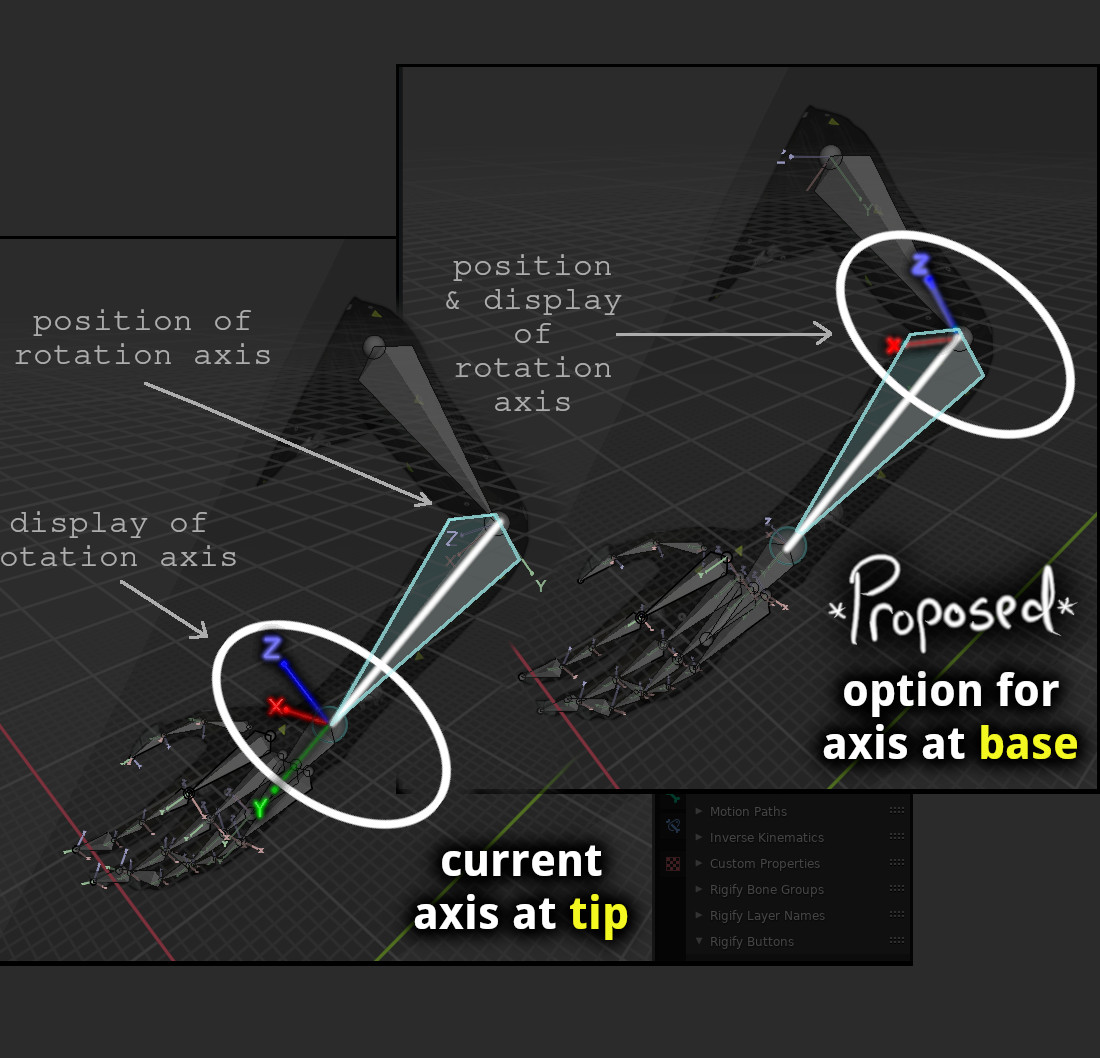
Currently Blender positions the rotation axis display for bones at the tip of each bone. We propose the introduction of an option in Preferences that allows this axis display to be placed at the base /origin/pivot of the associated bone, or at an arbitrary position along the bone via a 0-1 slider.
Note: I'm comparing and pointing out advantages in having the display axis at the base of the bone, with the goal to create an option, and not a replacement.
Benefits to having axis display at the base of bone(s).
1. Simplicity : The axis display location is where the axis of rotation occurs.
This simplifies thinking about the "axis", while also simplifying the language. As an example using the current tip location of the display axis: If I refer to the "axis at the elbow", it is unclear if the rotation axis of the forearm is being referenced, or if we are referring to the upper arm axis (which is what is currently displayed at the position of the elbow).
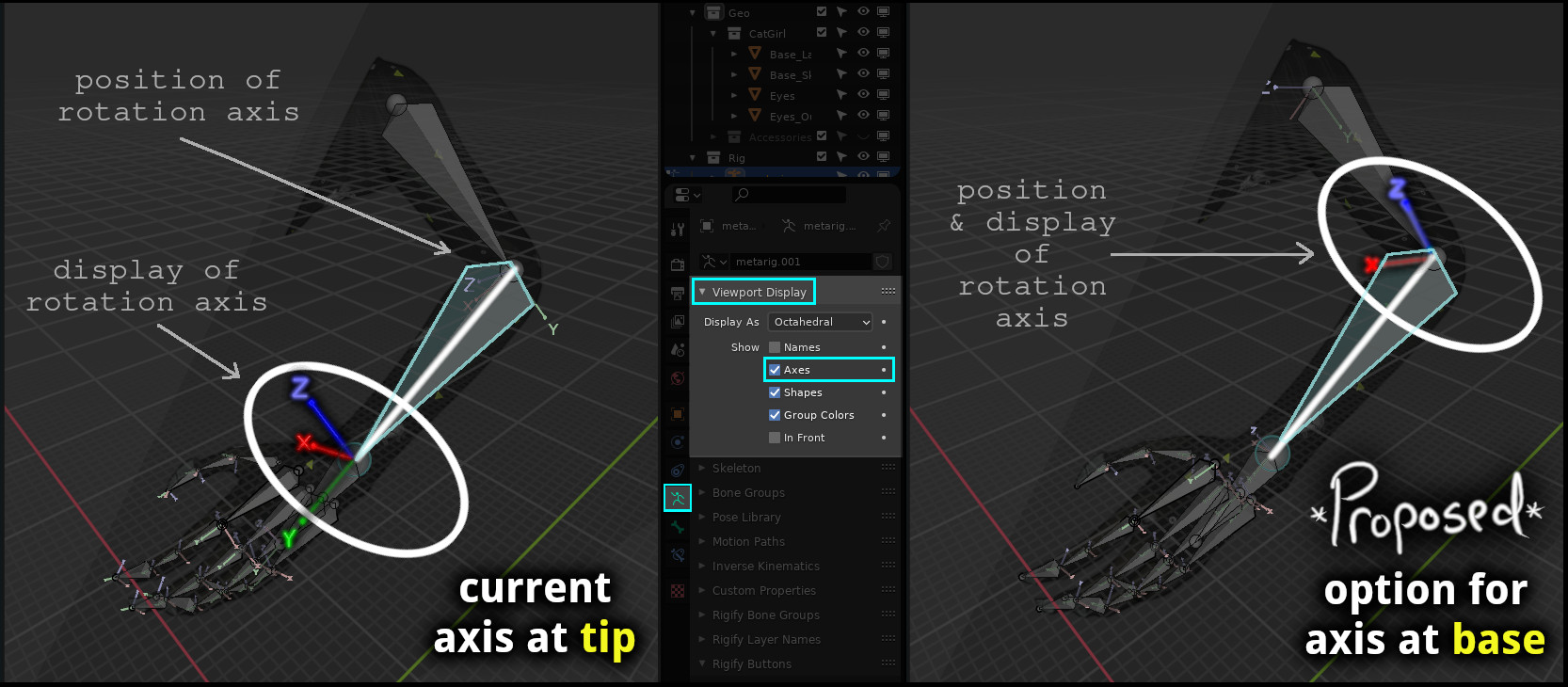
2. Consistent with display of hierarchy chain of parented objects.
If you create a hierarchy of objects, they pivot around the axis displayed via the Object Properties. Note how this behaviour and display are inconsistent when displayed at the tip , and consistent with the bones when the axis is displayed at the base of the bone.
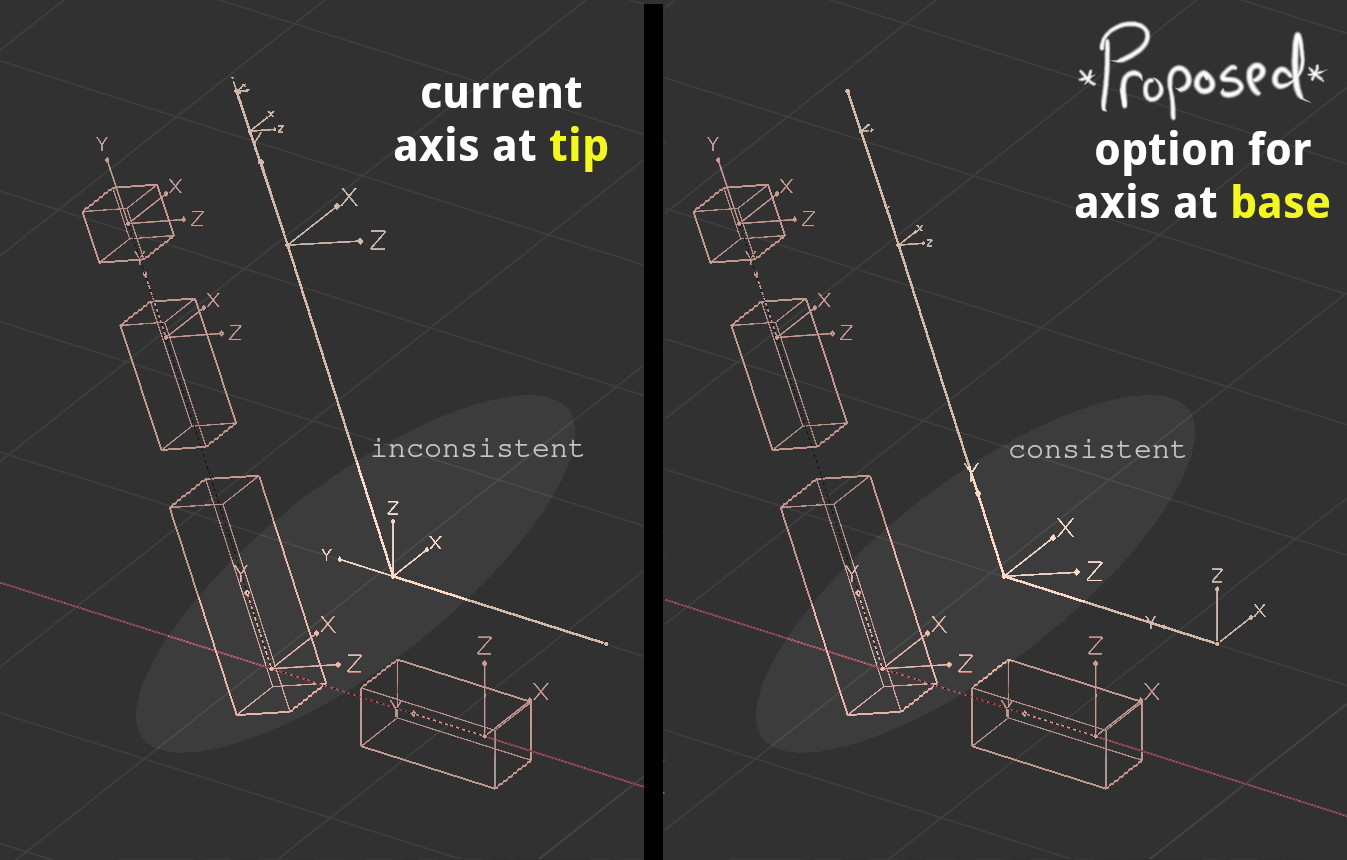
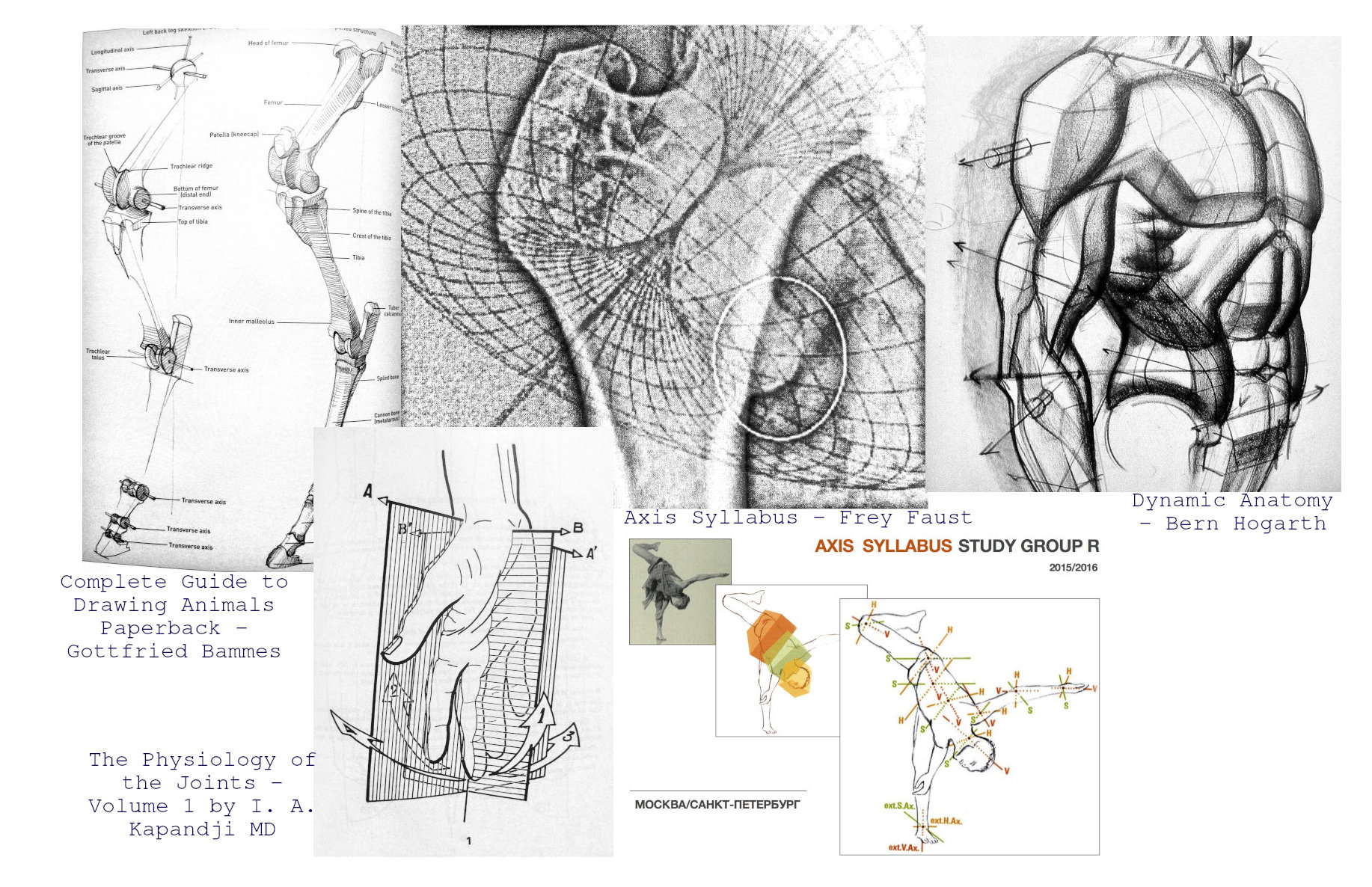
3. Consistent with display of rotation axis in illustrated anatomy & movement.
Examples showing axis illustrated at base of affected bone. Besides inside of Blender, I am unaware of an example where the axis or rotate is displayed at the tip of the affected object.
- Complete Guide to Drawing Animals Paperback by Gottfried Bammes
- Dynamic Anatomy by Burne Hogarth
- The Physiology of the Joints Vol 1 by I. A. Kapandji MD
- Axis Syllabus by Frey Faust
4. Rotations and alignments to the hinge can be made without risking the axis display moving off-screen, or behind another object.
The following is the current appearance/behavior. Note how the axis display can easily shift out of view, either through a clipping plane, geometry or off the screen. When zoomed in for precision rigging, this can be quite challenging to deal with.
The following is appearance/behavior with the axis at the base of the bone. Note how the axis being manipulated is always visible.
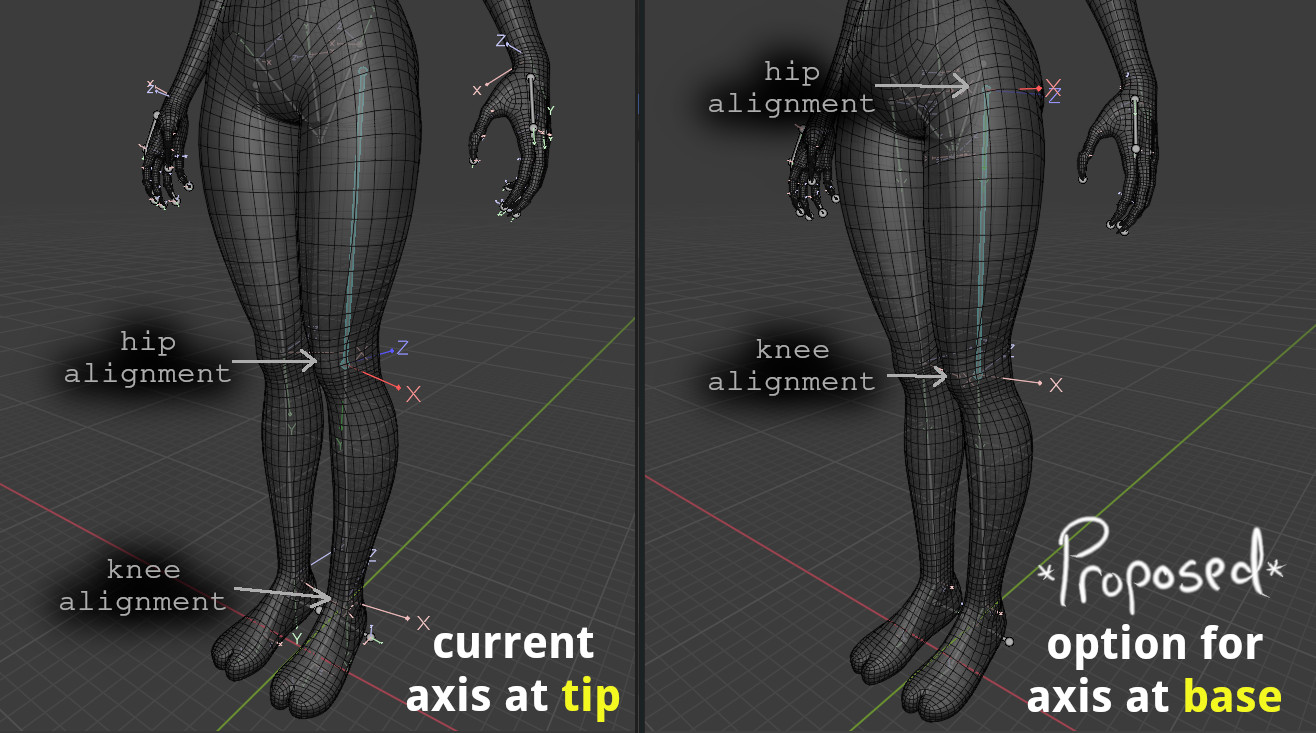
5. The axis is displayed directly beneath the surface vertices that are being influenced.
Notice how, when the axis is displayed at the base of the bone, the X axis protrudes from the side of the hip, allowing us to better estimate the rotation of the thigh, even despite the flattened view of the X & Z axis that is caused by the camera being level with the hips. The knee's behavior when rotating around X is very clear with the axis displayed at the base of the bone. While the display of the axis at the tip of the knee bone requires some significant guesswork as the alignment angle is distorted by parallax. Also, if thinking of skin weighted vertices as "children" of a bone, viewing the axis at the base/origin of a bone is more intuitive when predicting the behavior of the skinning.
6. Easier to observe and follow the axis when animated.
In this animated example, it's much easier to track the orientation of the shoulder, with the axis placed at the base of the bone (upper example). While having the axis at the tip (lower example) makes it challenging to follow and observe the axis. This challenges is amplified, the further you move down the hierarchy.
7. Allows for quick & precise alignment when rigging mechanical objects.
The axis display at the tip makes it challenging when trying to align the X up axis with this mechanical hinge joint, as I have to either zoom out or rotate the view to an extreme in order to bring the tip of the bone into view. I then have to rely on the octahedral shape's flat edge for any sort of precision, and hope there are parallel surfaces to align.
With the axis at the base , it is simple to rotate the X axis up, and align it within the very center of the hinge.
When rigging a skeleton, lowering the number of objects I need to bring into my view increases focus and generally simplifies the task. With the current axis location at the tip of the bone, we have to zoom out enough to bring the tip of the bone into view, in order see the axis I am working on. This is made more difficult, the longer the bone is.
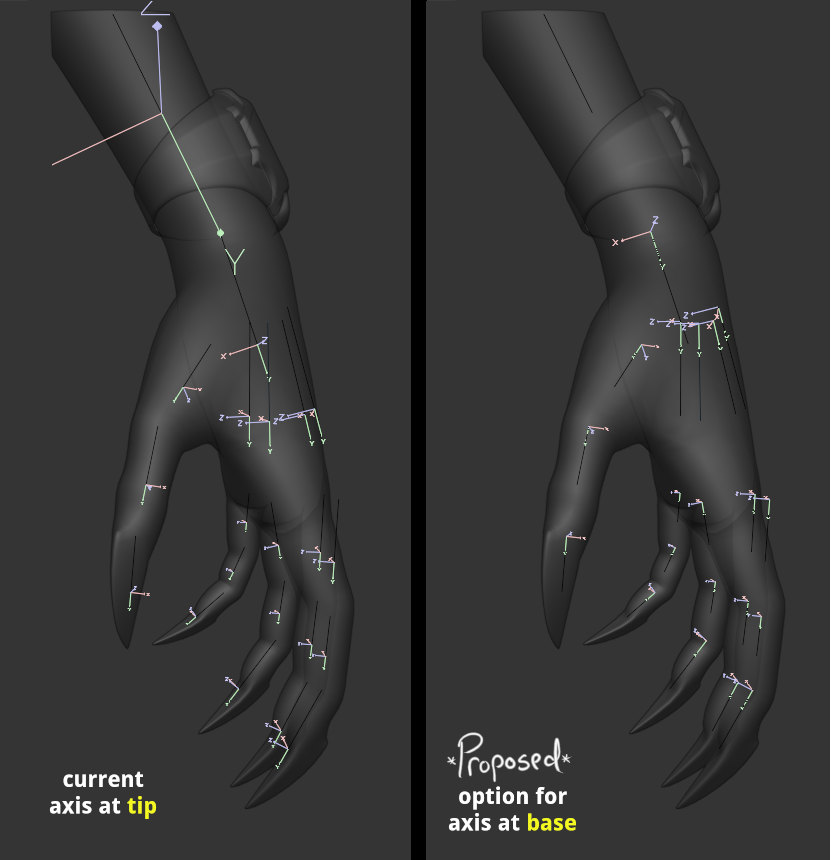
8. Location and behavior of pivots can be assessed at a glance.
In this minimal view, I have set bone display to "wire", to focus on the pivots points, and their alignments. Note how the proposed axis option ( right ) permits us to easily see the pivot points for the metacarpals and base of the thumb. While the current location does gives an incorrect view of the location of the pivots if not connected to the the base of the child.
Closing
As we realize there are some advantages to occasionally viewing the display axis at the tip of the bones, do not wish to replace the current axis location. We only hope ( pray ) for a toggle to place the bone at the base. Or perhaps, even better, have the ability to slide the axis along the bone, from base to tip. This could be handy for situations when multiple children bones share the same attached parent. The multiple axis could be displayed close to the bases of the bones, but nudged slightly towards the tip to prevent all the axis from overlapping, yet also avoiding the disconnect that occurs by having the axis display offset from the actual rotational pivot.
Next Step
Scott Wilson (aka "propersquid") was kind enough to create a prototype for this option and has shared the code on developer.blender.org . Please take a look and test out the code for yourself, if you are curious on how it feels.
[WIP] Armature: Add Display Axis Offset
Direct link : https://developer.blender.org/D7685
Currently there is no option created in the Preferences, as it was suggested to get community feedback before moving forward.
If you agree with this proposal, please Upvote this post Also, please go to Scott's WIP thread, review his code, read the description, make some suggestions and (if you like) award some tokens . We're looking for some FIRE !!
-= BONUS =-
Option to Adjust Automatic Scaling of Axis Display
As you can see in some examples above, the axis display is automatically scaled in proportion to the length of the bone. Though this can be handy in some situations (pun intended), this can make it difficult to visualize important extremities, such as the wrist and feet, which usually have very short bone lengths. Or, if there are many spine bones, these axis become virtually invisible unless zoomed very close. Recommend creating an option to adjust this automatic scaling of the axis display. Perhaps a slider that applies this automatic scaling. One end of the slider shows all axis at equal size, and another applies the current automatic proportional scaling. This could logic could also be applies to the octahedral bones.
Thank you for your attention.
- Jer Bot
9 Comments
This should be marked as done.
I just did.
Great proposal and good cause! I second this.
Just to pipe in, this is not the first time this issue has been mentioned before here - but this one take the cake in structure and practical proposal.
The humanoid model that was used for many of the demos, can be found here: "Catwoman Blender Eevee" by katarn66 youtube.com/watch
I’ve thought about this. How do you deal with overlapping bones when rigging? Even with different size you won’t be able to identify which bone you are working on... I think the clue was there when they made this decision
* @Pierrick Picaut * The thing is, putting it at the tip doesn't really solve the problem. Unless it's the last bone in a chain, the axis is just overlapping with a different bone. It's good for twist bones and such I guess, but I think axes at the base are less confusing despite the overlap issue.
I would prefer if the axes were represented within the model if the bone itself, or with colors, so that we don't really need the axes to know how the bone is oriented. But this is a step forward I guess.
Completely agree. Current state looks like an actual mistake from whomever implemented axis drawing. I'm not sure this even needs to be an option ?