
Bevel Shader: Convex / Concave Control
Hello,
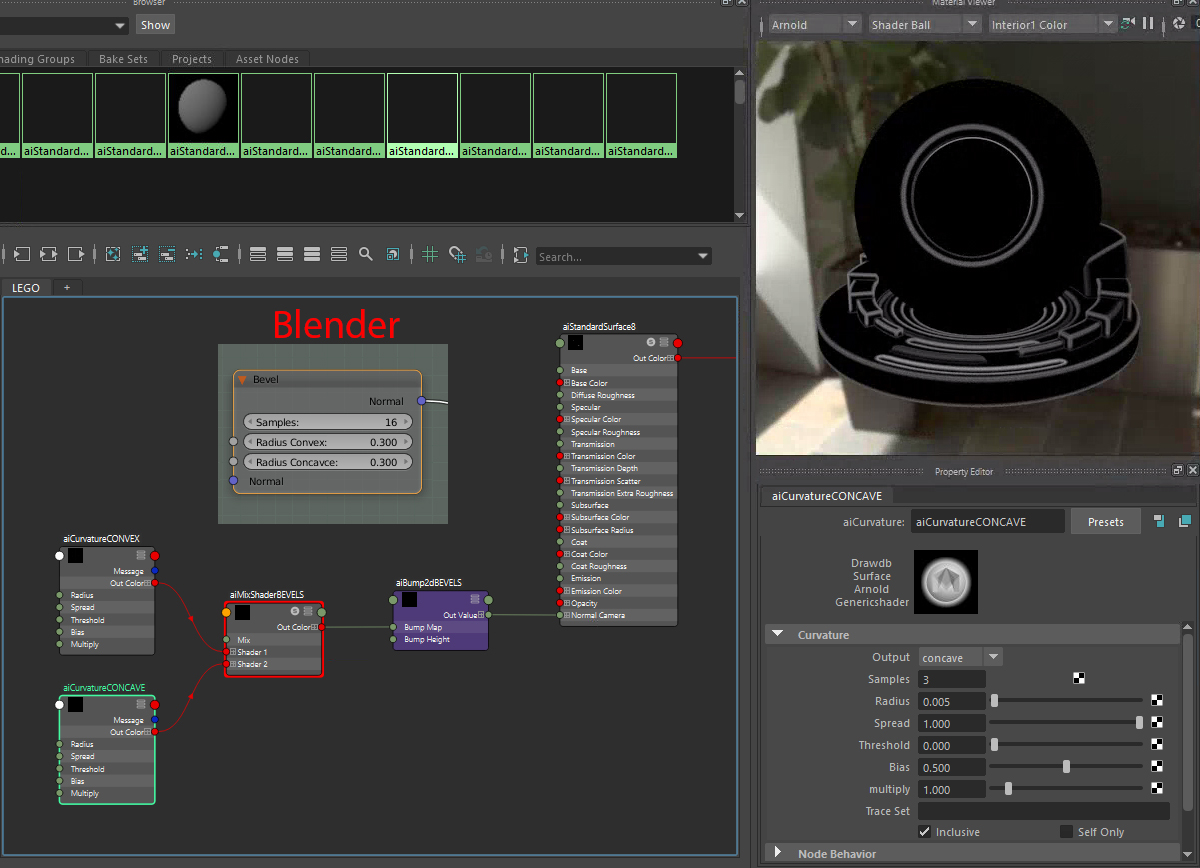
the new Bevel node is fantastic. Actually I played with Arnold (Maya) and build an own shader tree for a rounded edge effect. I realized that I can control Convex and Concave edges.
It would be perfect to add such a control to the Bevel node in case you need sharper Concave bevels.
7 Comments
Since we are just mocking up, why not adding an input for samples too? It might be useful to be able to control it in order to set it as low as possible for distant object for example
/bump
I am wondering if this idea is on the dev team's list? It's a useful improvement for the bevel shader. ;-)
As nice as this feature might be, it's really not sufficient to show another application's interface and say "add this feature please". This really needs to come from a Blender-based context. In Blender's interface, where would you expect to see these controls added? It appears that you would want these controls within the Bevel shader node itself. But it would be best if you were clear about that.
@Jason van Gumster:
Please apologize the confusion. I assumed that the Blender Dev team can handle this information/screenshot to understand what I mean. The above preview render shows the brighter thick outlines for concave bevels and the very thin darker lines for the convex bevels.
Beside that I think my description was a precise Blender-based context: "It would be perfect to add such a control to the Bevel node in case you need sharper Concave bevels."
The actual Bevel node is using the same value for convex and concave edges by Radius. It would be helpful to have two separate Radius controls for convex (outer bevels) and concave (inner bevels).
I have updated the above picture with a possible layout of the Bevel node to make more clear what I mean.
That's all.
@Michael Klein: Thanks for the update. From your mock-up, it appears that the Concave value has an input socket, but the convex one does not. Is this purposeful, or just an oversight?
@Jason van Gumster: Hello. True. I just forgot it in Photoshop. Thanks for pointing at this. Updated! ;-)