
Add option to move along projected edge to "vertex slide" tool
Vertex slide aka the move along edge tool (gg).
The way it works now is that you have a vertice that you can move along the edges that connect to that vertice along their length. But if you could also move along projected edges you could move the vertice along a projected edge outside of the length of the edges.
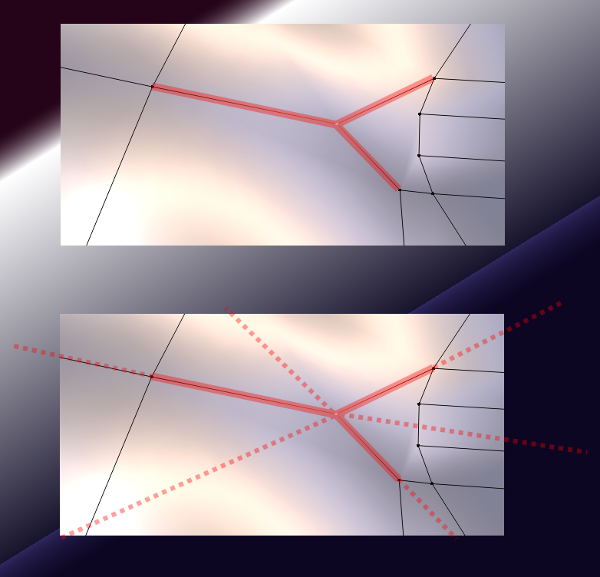
I have attached an image that shows how it would work. In the first image you have the tool as it is now. The red lines are where you can move your vertice. In the lower image you have the projected lines which not only allow you to move further away outside of the length of the connected edges but also to opposite projected directions which add a ton more flexibility to this tool.
This could be useful for situations where you can not easily just extrude and using the transform orientations' normal orientation does not work for individual vertices (normals point to some average direction of connected edges). And creating a custom orientation just so you can move one vertice is too slow. Especially if you need to move several vertices because in complex geometry that could be many operations. Moving the vertice by hand is slow and in delicate situations can hurt your vertex normals. Another situation where projected edges is useful is when you don't have an edge pointing where you need it.
10 Comments
If I understand correctly what you want, it's already there. Just active the tool with gg and then press c. You can also use Shift + v btw. for Vertex slide. That way you can move multiple vertices in the same direction. ... Also works with C
* @michael * Oh that's cool. There is no ui message for the c key which is why I did not know about it. Are there other such hidden options for the tool as well other than the c key?
* @o7216059 * While performing functions be sure to look at the top left of the 3D Viewport panel. There is additional info up there including other keymaps.
* @lilacdogoo * Thanks, did not notice them before.
* @michael * It was in front of us form the beginning !!! AAAA
* @michael *Thanks for the info. There is so much "hidden" functionality!!". Just yesterday I discovered the "anchor" option with the grab function.
* @richard * sure thing! What do you mean by "anchor"?
* @michael *Example: In order to align an object to the middle of an edge of another object: enable snapping, start moving by pressing “g”, drag the object to the first vertex of the desired edge, make an anchor by pressing the “a” key, move the object to the second vertex of the desired edge, fix the position of the object between two points (anchor and current) by pressing “enter”. This also works for several vertices around a face. The "a" key can also be pressed several times on one vertex to place the object 2/3, 3/4, 7/8 along the edge for example.
* @richard * Ah, awesome! I've never seen that one. Thanks for sharing!
* @richard * :o Thanks !