
In Geometry nodes, allow more control over how the value is interpreted by other nodes
There is an inconsistency / lack of control in terms of how value nodes are interpreted by geometry nodes, and the value node becomes more frustrating to use as a result.
Example: I have my scene units set to millimeters, I create a primitive cube inside of geo nodes and the size xyz inputs of the cube are using millimetres. The default is that the cube is coming in at 1000mm (or one Blender unit).
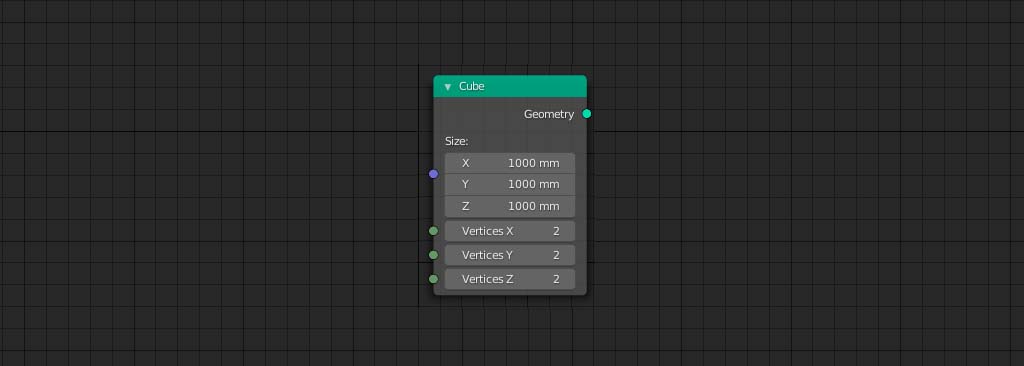
I add a 'value' node to control the size xyz of this cube together as one.
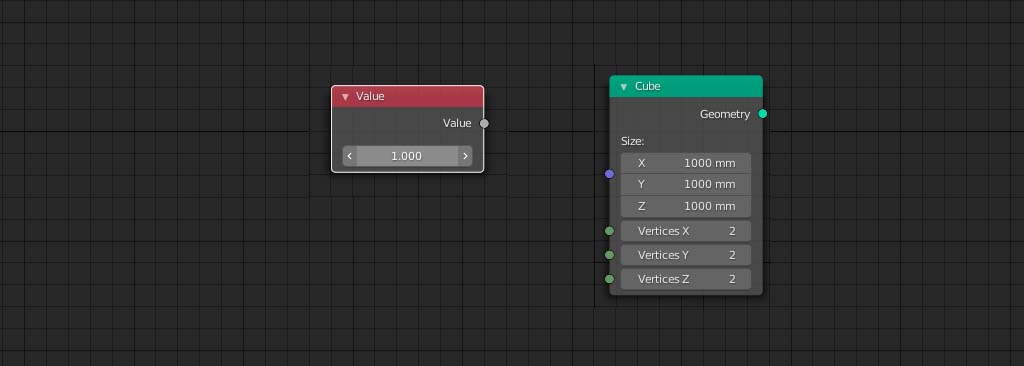
I plug that value node into the cube's size xyz, and there seems to be some kind of translation whereby 1.0 on the value node = 1000mm (1 Blender unit) on the geometry node.
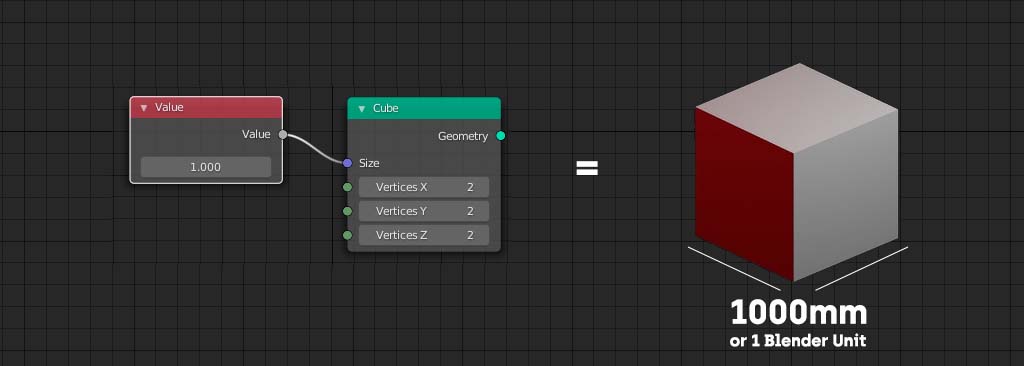
My request is for there to be more control over this interpretation if possible i.e be able to control whether values are interpreted in scene units or Blender units.
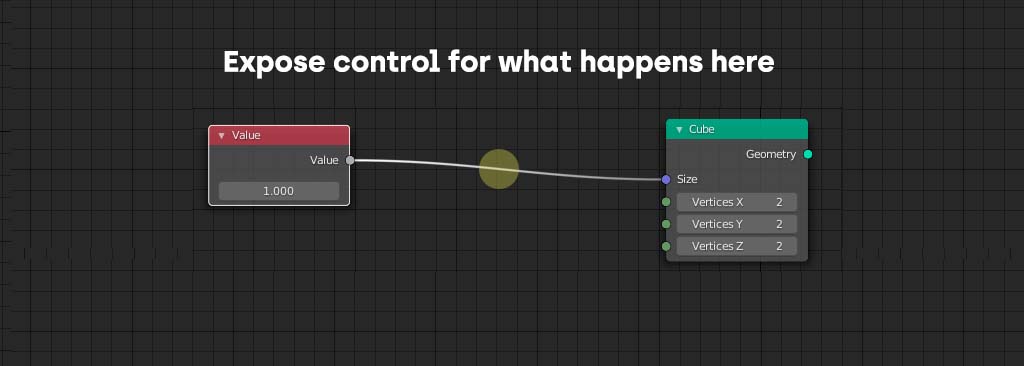
I'm currently having to do this kind of thing manually, adding an extra math node in and multiplying the value by (whatever) in order to make the value node display my desired units.
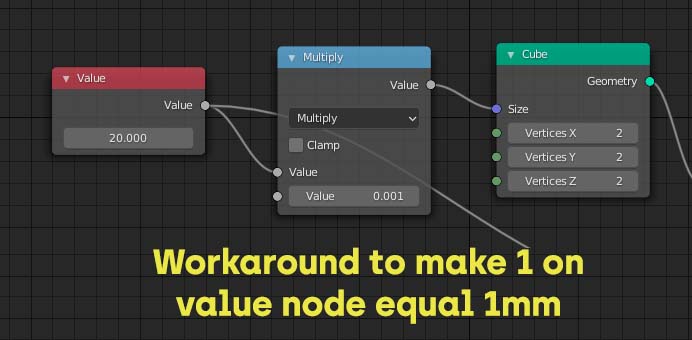
I feel it would be a faster user experience and easier to mentally process the node tree since you're able to use fewer nodes / easily have consistency in the values being used in the different kind of nodes.
The thing is that some nodes seem to work in a 1:1 way already. If I plug a value node of 1.0 into rotation on a geometry node this translates to 1 degrees of rotation and not one full rotation.
Some thoughts as to a possible solution would be an option in preferences to set value nodes to either be 'adaptive' as they currently are, or interpreted always in the scene units.
Another possible solution would be some kind of individual control on how the value node is interpreted, like an option on the value node itself to assign a 'unit' to the number (a dropdown for millimeters or degrees etc).
These would both have their pros and cons, I guess it's that possible both routes could be combined so the 'default' interpretation is settable (e.g value is interpreted in scene units) with the addition of manual override controls on the value node itself, to avoid so many math nodes needed.
As a final note this may also be useful in other areas of Blender such as shader nodes.
Thanks!
1 Comment
Hello Matt,
Nice post, graphics and all! I found this while researching a bug in which the Value Node in Geo Nodes (GN) scrambles the input.
[I would note that putting a value of "1.0" into a GN rotation gives 1 radian of rotation, even if the node shows degrees (tried with a Color and Combine XYZ node into a Transform node's rotation to confirm).]
For the issue you highlight, a partial solution with limited UI impact might be to allow the input of units into the Value Node, and let the system convert away. For transforms in the 3D View, this works already: if I input 2 mm or 3', for instance, the geometry goes where I expect regardless of scene settings.
These posts ( blender.community/c/rightclickselect/oZ2B/ ) and ( blender.community/c/rightclickselect/ywEW/ ) also touch on the issue.
In my case, I am converting years-old game assets into GN. I did considerable research to make them geometrically accurate at the time. Now, I add a mesh grid (similar to your Cube example), and hook up a Value Node to the Size X input of the Grid Node. Putting the same value in the "Value" Node versus directly into the Grid Node gives different results.
A little playing around and I figured out that the Value Node was using Blender Units, in which 1 BU = 1 m (naturally!). The fact that the unit symbol for Blender Units is the absence of a symbol only serves to add to the confusion.
Yes there are work-arounds (which in my case I will begin implementing immediately after finishing this post), but that this node not respecting my scene settings and further not allowing me to easily fix the mistake, is a bug.
Views differ - developer.blender.org/T94223
For those of you working in the civilized world, this is a paper cut; you just move the decimal point. For those of us scrabbling away here in the U.S., it breaks the flow to have to stop and look up the conversion between inches or feet and Blender Units.