
Edit mode - Visual style option
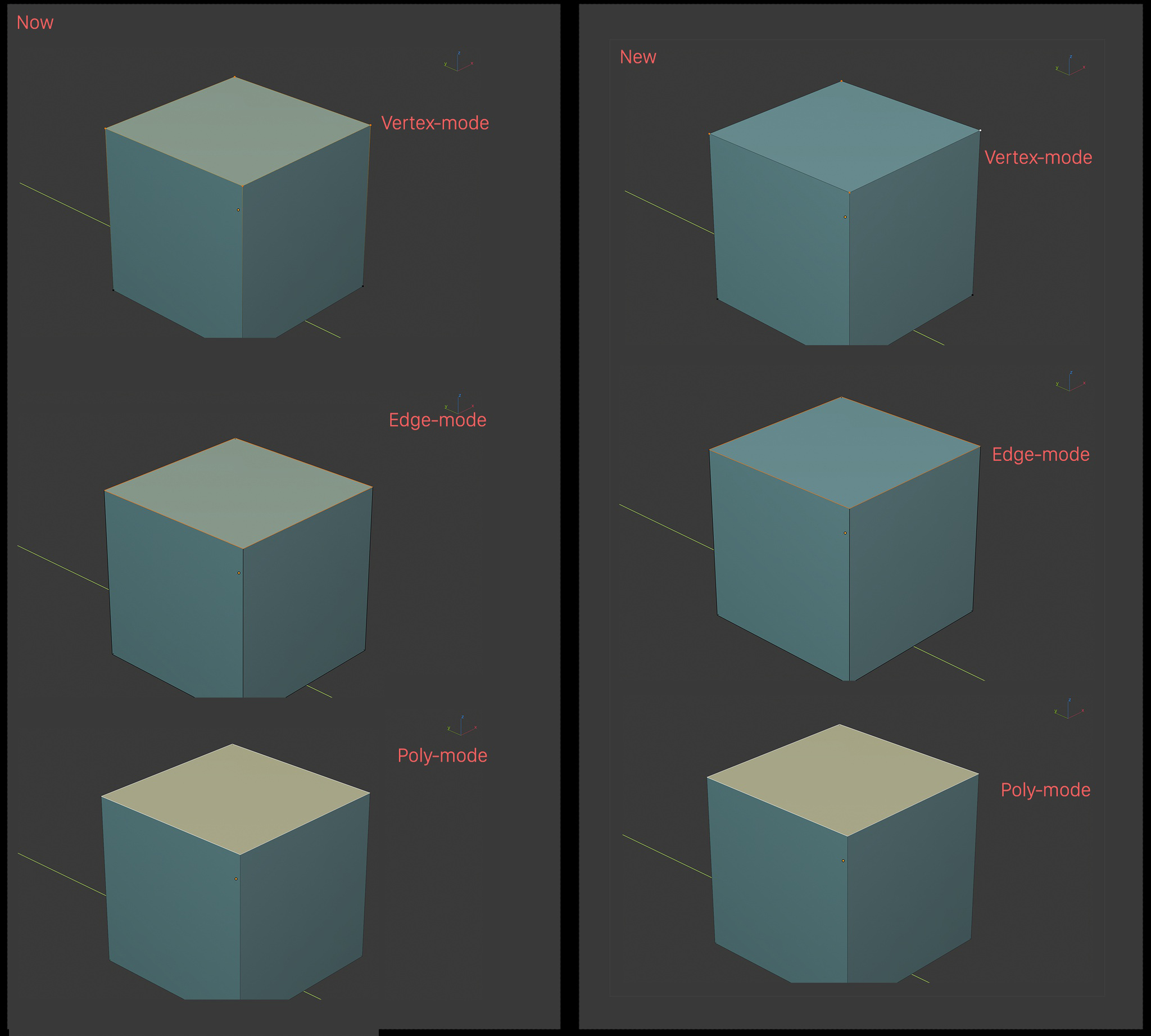
At the moment the way Blender shows the selected elements in edit mode is a bit confusing.
It's one of the things that characterise blender and I don't think we should change it...but can we add an option where the users can decide to show those elements in the way other 3D softwares do?
Cheers!
17 Comments
Nope! Because the way it show selection for now - it's just the way Blender work.
If you select all Vertices or Edges of some Polygon it's equal to select this Polygon, you can do " Face " operators for this selection. So polygon have to be highlighted iv Vertex & Edge mode... Nice try.
* @forestgumpovu4 * I'm sorry mate but you are wrong. If you select 4 vertex of a polygon and you press bevel it will bevel the vertex, not the polygon.
if you select an edge and press extrude it will extrude the edge but if you select 4 edge of a polygon it will extrude the polygon and not the edges, if you want to extrude the edges in that case you have to go into the edge menu and choose extrude.
So do you think is convenient in terms of shortcuts. having 3 shortcuts for extrude 3 for bevel etc etc.
another example is the delete button, how inconvenient is having delete and dissolve. It would make more sense having dissolve for vertex and edges and delete for polygons all done by pressing the letter X
the operations are different between polygons, vertex and edges. That's why it's convenient to have a "context-sensitive" system of tools.
This video can be useful to understand what I'm talking about: vimeo.com/161104567
* @giuseppe *
If you select all Vertices or Edges of some Polygon it's equal to select this Polygon, you can do " Face " operators for this selection. So polygon have to be highlighted
So where am I wrong?
About this another example - it have sense for all this separate delete and dissolve. If you don't use it or don't know where or how to use it - it doesn't mean that no one need it.
* @Craig Jones * Hi Craig, yes I know how tools work in Blender. If I had to design Blender I would put the delete key "X" as dissolve for edges and vertex and delete for polys. Separately I would make a Merge tool "M" that will merge adjacent polys if you are in poly mode, merge 2 edges into one if you are in edge mode and 2 vertex if you are in vertex mode. (with the option of merging them in the center or to the last selected).
* @forestgumpovu4 * you are not wrong in the second one but in the first example."If you select 4 vertex of a polygon and you press bevel it will bevel the vertex, not the polygon."
That's why in my opinion the modeling tools are inconsistent.
We can either go..let's merge all the selection modes (vertex, edges and polys) into one "multi-selection" and then have for each tool the ability to choose what type of element we want to affect....or we can have different selection modes (vertex, edges and polys) and make the tools behave in a different way depending which mode we are in.
I would go for the second one because it allows you to have less shortcuts to remember and it will be more efficient.
* @Craig Jones * I am suggesting things to make Blender better not similar to other 3D softwares.
We can either merge all the selection modes (vertex, edges and polys) into one "multi-selection" and then have for each tool the ability to choose what type of element we want to affect (which I think is very inconvenient)....or we can have different selection modes (vertex, edges and polys) and make the same tools behave in a different way depending which mode we are in. I think this would be more effective.
* @giuseppe * Well well
If question about visualization - you always can turn off Faces overlay. Yes maybe settings can be better like to not show Faces only in edge/vertex mode, etc.
If question about Bevel or something else what work in some mode and not work in some other - ask to make it work same in both.
* @forestgumpovu4 * The question was about visualisation style. I might make another one about modeling tools.
At the moment there is an option to disable faces overlay for vertex and edges.
Give it a try, it's in the viewport, top-right corner, Display Overlays>Mesh Edit Mode. Try to disable all of them.
It does what I want but I can't see the faces highlighted anymore when I'm in poly-mode. Maybe that can be fixed to solve the problem.
* @giuseppe * i was going to post the same video about "Context-Sensitive Behaviour" blender seems less mature in that regard and considers all components the same.
* @PK_GO * what software did you use before moving to blender?
* @giuseppe * maya
So simple like deactivate the elements in overlays and except face you will have the same.
* @Alberto * yes that's why I posted it, I was asking for the faces to be showed
It makes sense. I would like to test it.
Your screenshot is wrong. You have swapped Edge and Poly modes
* @billrey * Thank you, I did a quick fix
I agree, the face selection when in edge mode is very implicit. No other 3D apps (that I know of) have this behavior maybe due to this reason.