
Unify Object Viewport Display Options
Why:
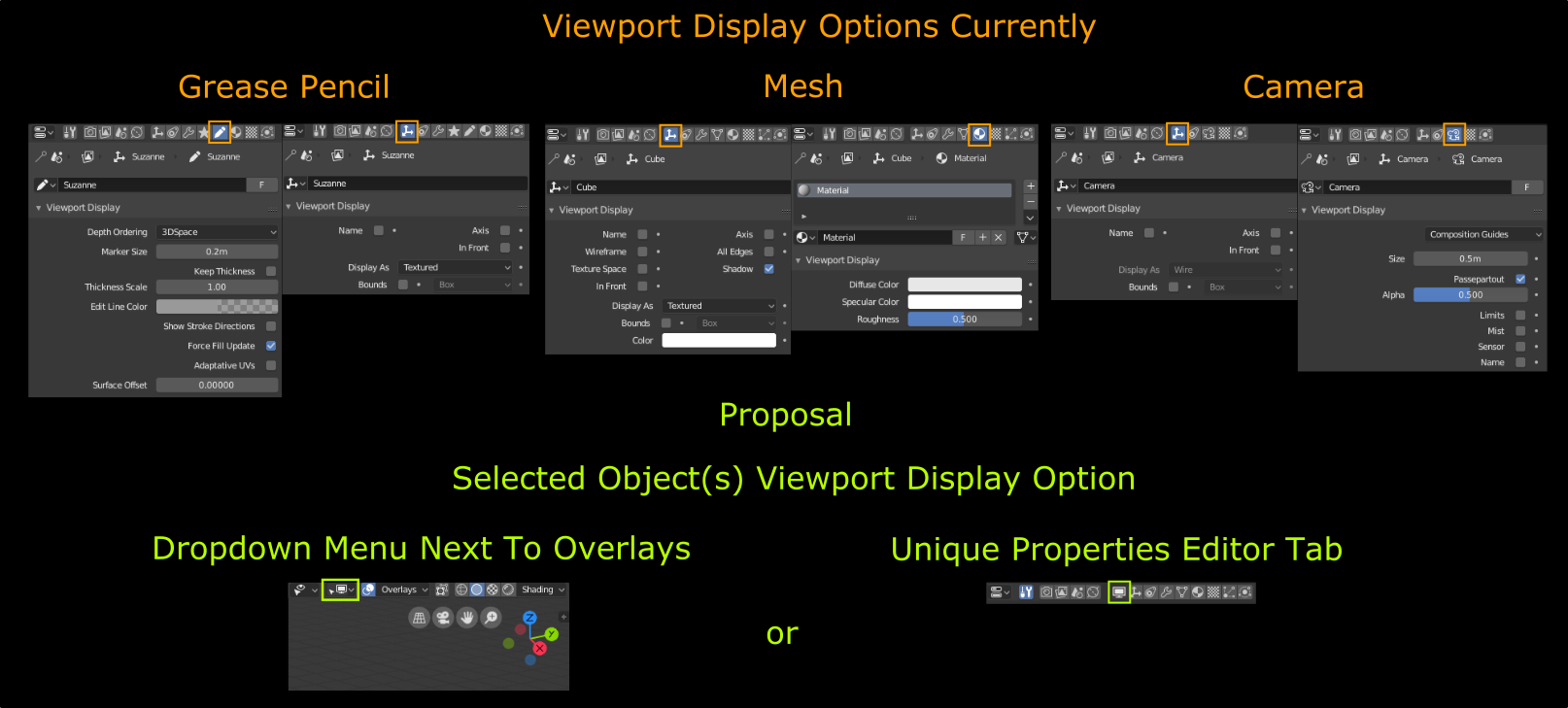
Its redundant to jump back & forth between different tabs for viewport display settings for the SAME object, which will become tedious overtime for a menial task. Instead, it would make a lot more sense to centralize this process applying to all object types. I think many of us would prefer to, the majority of the time have the Properties Editor's tab selection to display & have access to more important tools such as Modifiers & Data.
How:
Proposal Two Options Proposal (Either & Or):
[1] Dropdown Menu next to Overlays:
Advantages:
- Logically it would make more sense to relocate these options next to the Overlays; the 3D Viewport upper right corner has been delegated to well, viewport display settings!
- Incentive for new users to discover & learn to use viewport altering toggles in a productive way.
- Tab switching reduction in the Properties Editor; now you don't have mundanely switch back & forth just to toggle an object's display option.
- Shorter mouse travel distance (depending on GUI layout); if based on a standard layout, vertical is shorter than horizontal mouse movement.
Disadvantages:
- You can't display multiple active/inactive objects viewport settings at the same time due to the singular dropdown menu; unless you add a object pinning toggle in the dropdown, thus allowing active selection not overriding inactive object's display settings.
[2] Unique Properties Editor Tab
Advantages:
- Universal location for all object type's viewport settings; no longer have to think about material or object display settings in different area just in one place, simple.
Disadvantages:
- More tab switching just for display options! Fun....
- Another damn tab added to the already congested Properties Editor especially means you have to scroll over the header area even more based on the horizontal design. This can be mitigated with the vertical header tab design though (does anybody know the eta of this implementation?).
Personally I prefer the Dropdown Menu.
1 Comment
But you must access the material anyway, to select it, to see these display properties. What is the use of having to leave this panel to go to another panel? How will you know which "display property panel" will match which item? Sorry for the translation...