
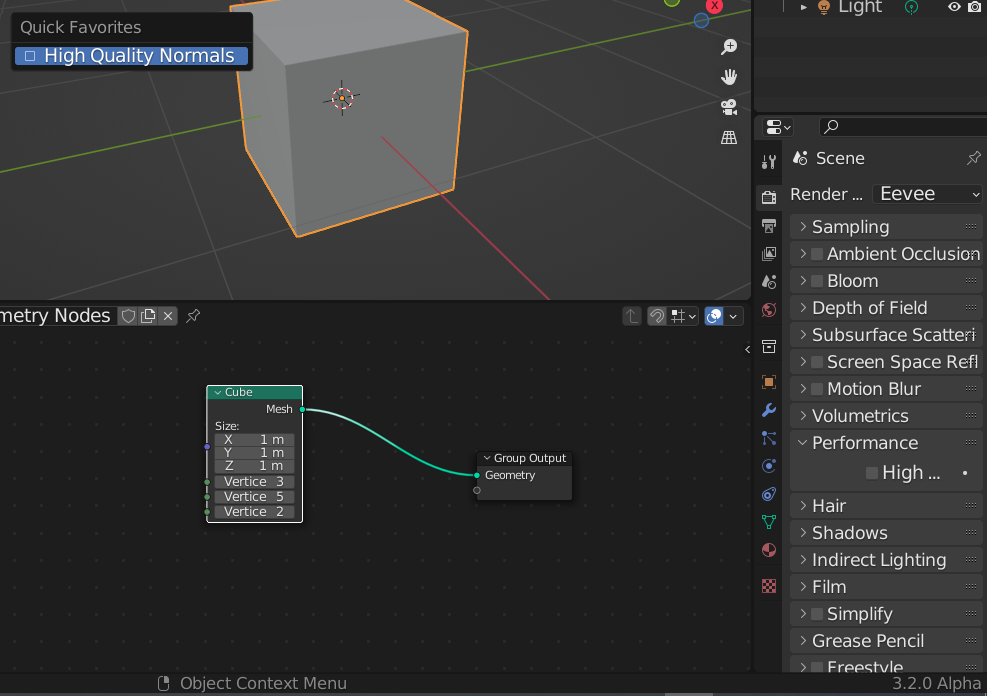
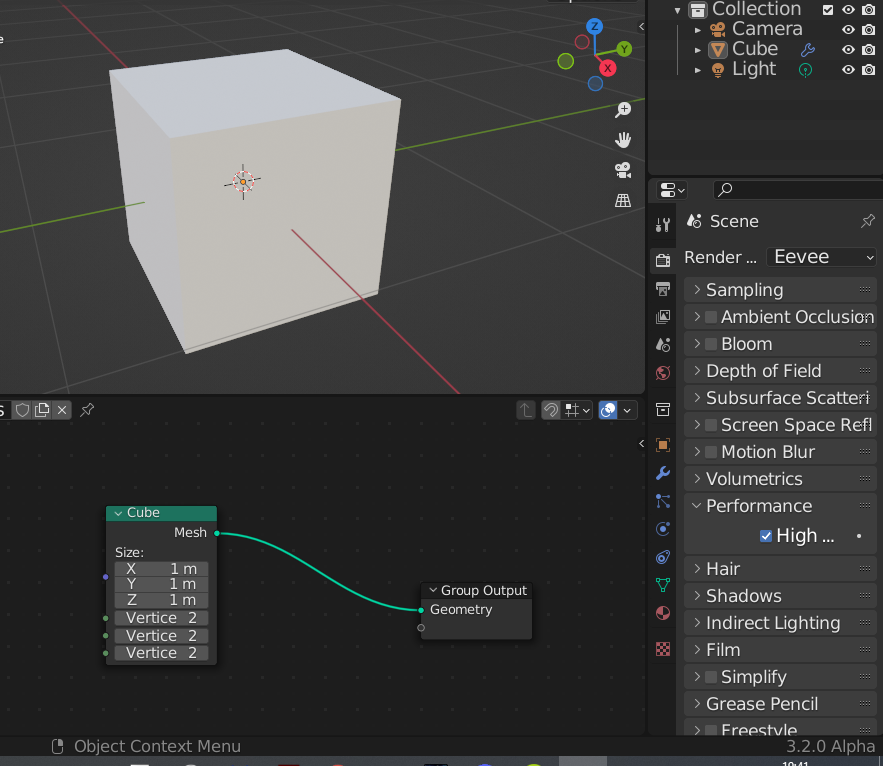
High Quality Normals is required when you switch to Material or Rendered mode. Why is it not on by default when you switch to those modes?
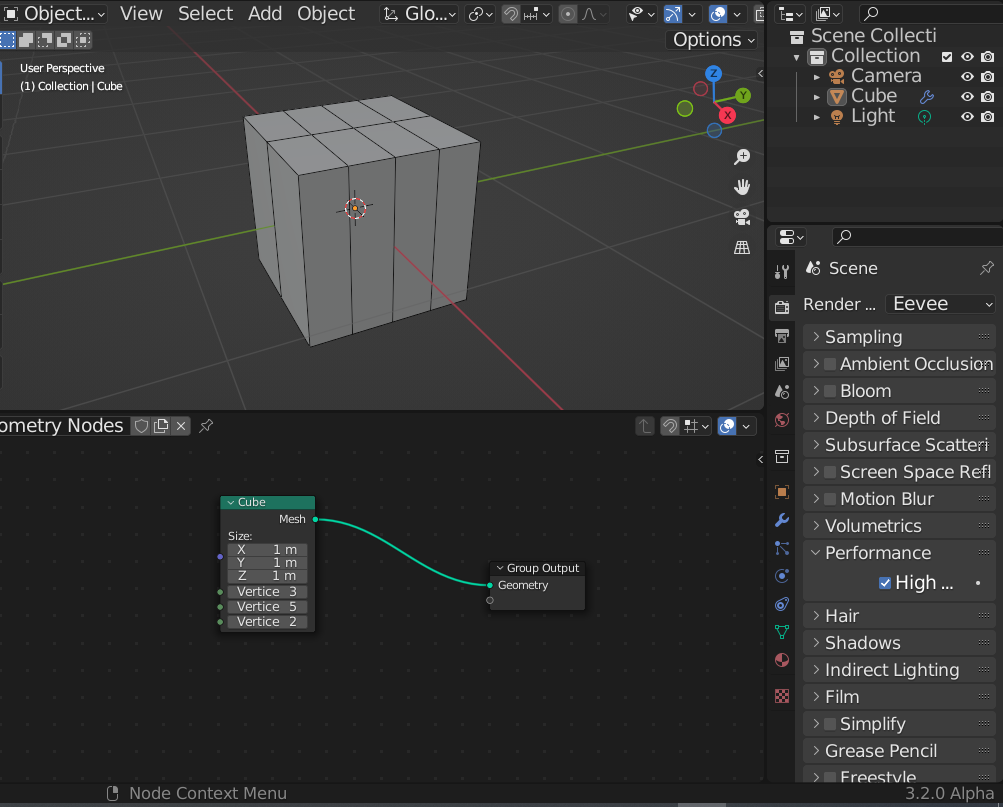
High Quality Normals is ALSO required if you want to see your loop cuts in Object Mode after activating Wireframe in the Overlays menu, which is something I didn't think I'd ever use until I started really getting into Geometry Nodes and found out what Wirefrme did. Although normally pointless, because you previously weren't able to to modeling outside of Edit Mode, Geometry Nodes pretty much allows Object Mode to become Edit Mode for procedural modeling.
When I downloaded Blender 3.2 Alpha to test out the Extrude Node, I forgot to turn on High Quality Normals like I usually do, because I was just so excited about the Extrude Node.
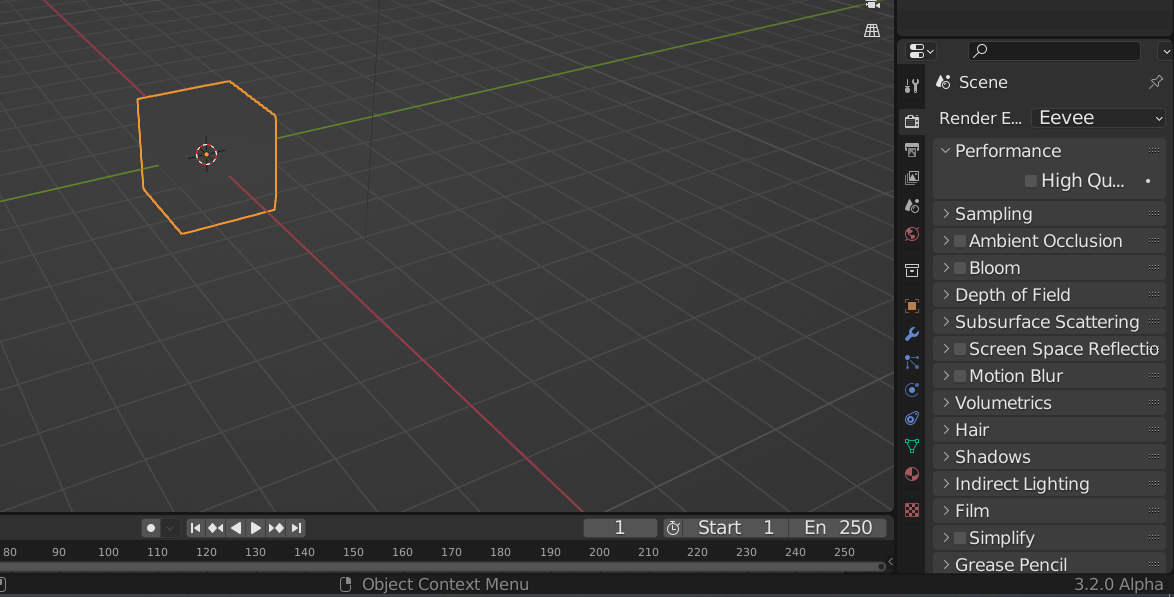
When I went to add some loop cuts to my cube, I couldn't see them, and I thought it was a bug with 3.2 due to still being in Alpha. After learning how to submit a bug report (Actually very easy), I got a few replies from users the next day saying that the Wireframe worked for them, so I decided to give it another shot.
I switched to Material Mode as well to see if changing modes would help, and I realized I didn't turn High Quality Normals on, because the cube was greyed out. I went to turn it on, and as soon as I did, the loop cuts showed up!
So yeah, I thought Wireframe was bugged, because you need High Quality Normals turned on, which I forgot to do upon opening Blender 3.2, because even though I turned it on for 3.0, 2.9.3, 2.90, 2.80, 2.81, 2.82, 2.83, and the other versions of Blender, I forgot to do it for 3.2, and it's not automatically on by default when you activate something that requires High Quality Normals to be on.
Here's the bug report I made if anyone's curious; developer.blender.org/T95324
5 Comments
Having to use high quality normals is not something forced, it's a bug with AMD's drivers. When was the last time you updated your drivers? What GPU do you have?
My GPU already has the best drivers according to Windows. My GPU is the AMD Radeon R6 Graphics
Your drivers are severely out of date. Go update them. Properly - download them from AMD's site. The windows driver utility almost never works, and for GPU drivers it definitely does not.
Apparently driver version 21.5.2 is the latest version, which is what I have
Ah, I guessed the exact issue wrong, kinda, but it looks like it's still just a general AMD issue, as your bug report was also mentioned here: developer.blender.org/T95586
High quality normals are not actually required, and don't need to be default. This is just another case of AMD driver bugs, which the blender devs will hopefully work around and you won't need to use high quality normals. You can check if it's fixed on Linux with the Mesa drivers, or using an older driver version than that (older than 20.5?). Though, 21.5.2 really isn't the latest either, and I suspect AMD might have given up support for your APU...
Additionally, work is being done to port Eevee to Vulkan, which seems to have better support from AMD than OpenGL, so hopefully that will help with such bugs in the future.
Also, you should've pressed the button to copy the settings from your previous blender version when starting up the new one. It copies the startup file as well.