
Gimbal
The gimbal could use a few touches before the final release, in my opinion.
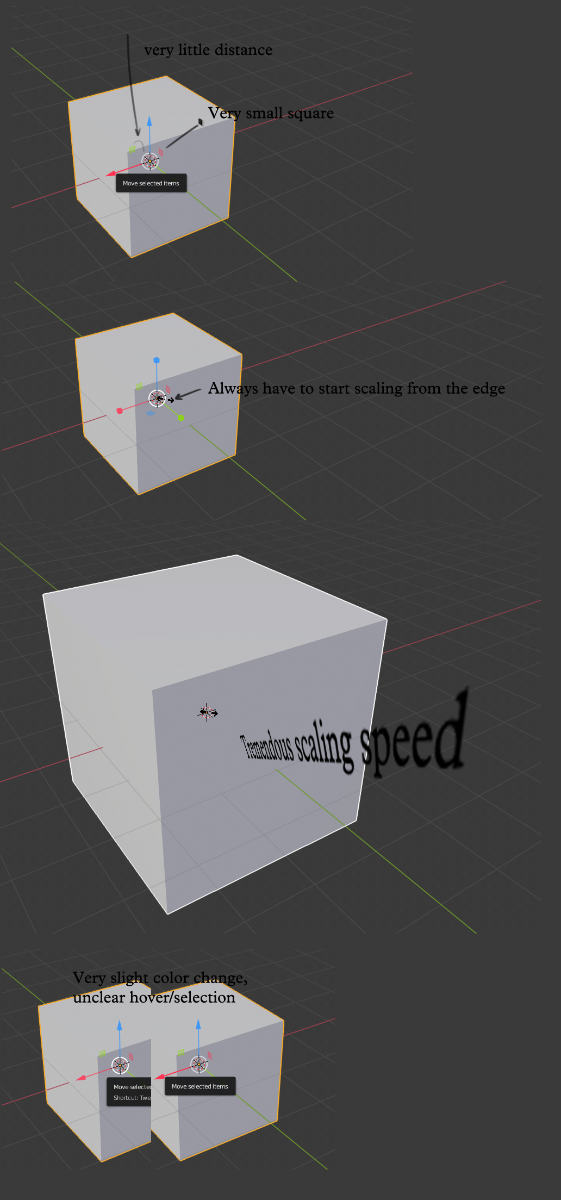
- The default gimbal proportions are too small. Scaling it from preferences does not solve this, just makes everything bigger. What I mean by proportions is that the distances between the square parts and the center are too short. Check the image for a comparison between Maya and Blender. Why does this matter? More distance would make them easier to select and harder to missclick, even when using a smaller gizmo.
- The color change for when you hover over parts of the gizmo is too insignificant, barely visible. The image compares Maya and Blender again (to be honest, Maya's gizmo looks disgusting, but it is more easily visible. Perhaps the same can be done for blender without losing the cool appearance of the current gizmo).
And regarding scaling from center.
-
Currently, if you scale from the center of the Blender gizmo it is practically unusable. Move a few pixels to the right and it already covers your whole screen (check second part of second image for Maya and Blender comparison again). That is because scaling is dependent on distance moved from between the center of the scaling circle and it's edge. I just recently learned that in Blender you can center scale from outside the gizmo but this is not very noob friendly or intuitive to many users. I wouldn't say it's a core issue, but it is weird to not be able to scale from center, whilst still having the center circle be there. A solution would be to just scale at a constant speed, independent of distance moved from center, whilst still keeping the center scaling outside of gizmo.
-
If 3) is to be done at all, the "stick" parts of the scaling squares must be unselectable in order to be able to more easily select the center (perhaps a good hover over color change could help with this as it is currently a bit hard to tell what you are going to scale and it's easy to go over to another scaling part since there is no distance between all parts, check first part of image below for reference).
5 Comments
The word you're looking for is 'Gizmo.' Gimbal refers to the rotation order of the X, Y, and Z axes, as in Euler rotation.
Also, it's not much help to say "Make it more like Maya." Your post reads more like a complaint than a suggestion-- how would you solve the specific problems you've mentioned? Many Blender users and developers are unfamiliar with Maya, so if that's what you want you at least ought to show what it looks like. And of course, you'd also want to show what the Blender version will look like- Blender doesn't manage pivots the way Maya does (thank God), so it would be very difficult to make Blender's scale gizmo work like Maya's.
Finally, it looks like most of the problems you're having stem from the gizmo being too small. Have you tried changing the size of the gizmo in user preferences? It's in the 'viewport' tab. There's also an overall scale in the 'interface' tab. Also, the menu has been moved again; it's not in edit anymore, you have to click on the Blender logo on the top left.
hiveworkshop.com/attachments/untitled-3-png.323176/
And I retract my last statement regarding scaling speed, which was my main issue. You just have to scale from outside the gizmo if you want a good center scale. It's intuitive for many people to scale from center, which is practically unusable as it is now, because its dependent on distance moved from the center of the scale circle to the edge of the circle. I did not think about scaling from outside and had forgotten it worked that way in blender (I haven't used the program in a while, just coming back to it because of 2.8). I apologize for the mistake here, lack of knowledge on my end.
However, maybe it would be good to have a more Maya preset for beginners and people used to other programs, where in Scale mode, the "sticks" between the center selection and squares are unselectable and scaling is at a constant speed and it doesn't matter whether you scale from the center circle or from outside the gizmo.
hiveworkshop.com/attachments/untitlehd-3-png.323177/
* @mephistoprimeevil * Could you please Edit your original post (there's an "Edit Post" button on the top right corner.
As well as integrating your pictures correctly in so they get displayed. You can do that either by drag'n'droping your picture files on the text field, or using the following markdown code:
* @-L0Lock- * Edited. It gives me a 404 error when I try to delete the original image.
* @mephistoprimeevil * Thank you. At least the original post is clear now :)