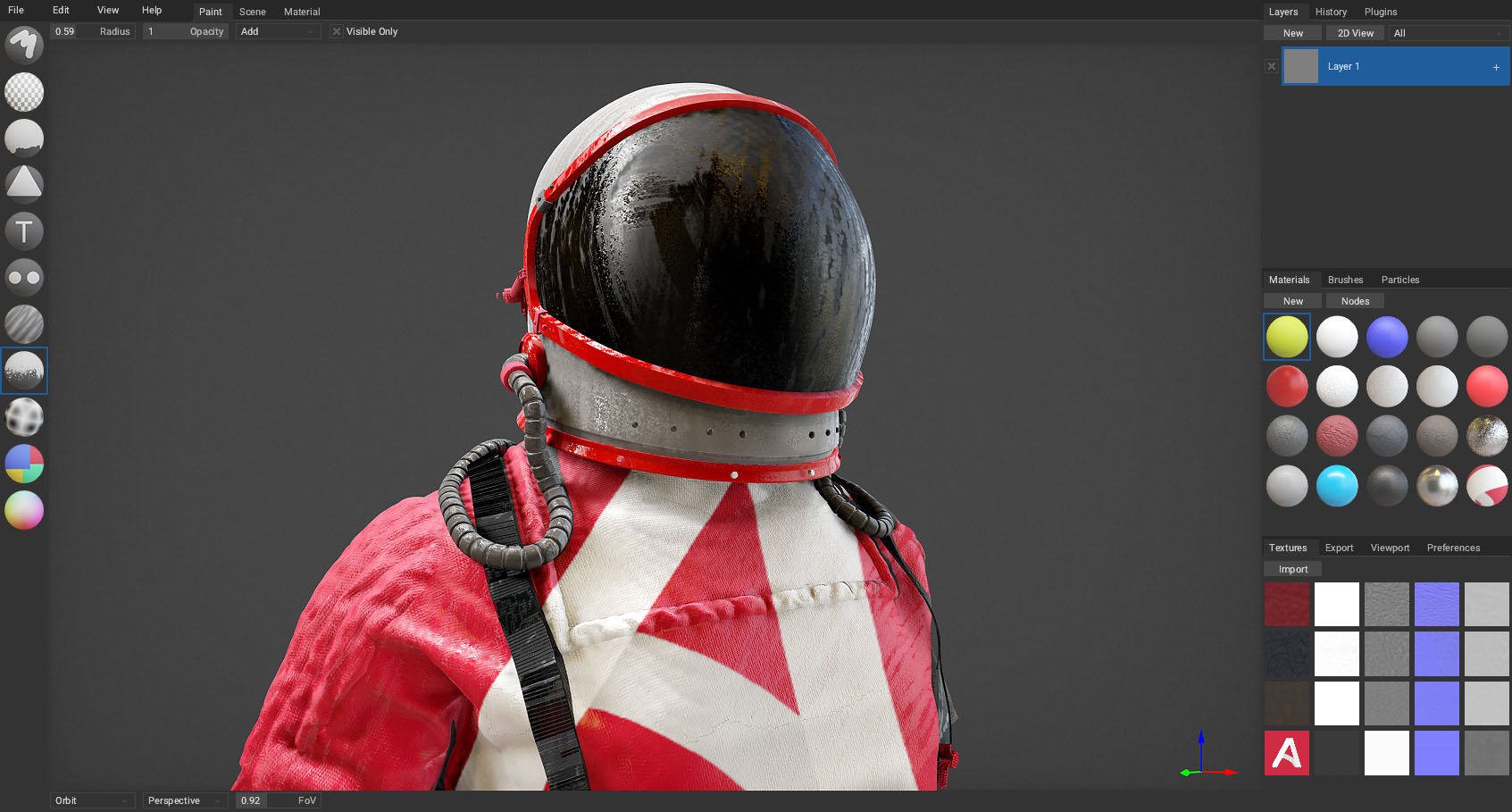
Armor Paint compilation guide
I have notice that people is having trouble compiling Armor Paint, myself included, so after succesfully compiling it i decided to write this guide
I. Download and install Git from git-scm.com/downloads . When installing Git on Windows, select Use Git from the Windows Command Prompt option. You will need Git later on.
II. Download Armory3D.
-For the compiled version go to armory.itch.io/armory3d . When the download is finished extract the folder from the zip file and open the blender version included in the folder.
-For github clone:
Open Git UI, then click on "clone existing repository". On source location write: github.com/armory3d/armory , and on target directory write the folder in wich you want to clone the files. Make sure the folder in wich you want to clone does not currently exists on your system.
Check the "Recursively clone submodules too" box and proceed to clone the repository, the process may take a few minutes. After the cloning process is done open the blender version that is inside the cloned folder, then open the preferences and go to Addons > Armory Uncheck the "Bundled SDK" box, then set the path to the cloned folder.
III. Update Armory to the lastest git version.
You will need Git installed to successfully update Armory, so if you didn't downloaded it now it's a good time to do it. Open the Blender preferences and go to Addons > Armory, then click on "Update SDK". You can see the progress on the blender system console, which can be open in Window > Toggle System Console. You will need to reboot blender after the update is done.
IV. Clone the Armor Paint repository.
Open Git UI, then click on "clone existing repository". On source location write: github.com/armory3d/armorpaint , and on target directory write the folder in wich you want to clone the files. Make sure the folder in wich you want to clone does not currently exists on your system.
Check the "Recursively clone submodules too" box and proceed to clone the repository, the process may take a few minutes.
Note: If you download it from the github repository instead of clone it, you may have some errors when compiling.
V. Test Armor Paint.
Open the blender version that you downloaded/cloned. Then open the "armorpaint.blend" file included inside the Armor Paint cloned folder. If you are on Windows, make sure the selected player graphics API is OpenGL. You can check this in Preferences > Addons > Armory > Player Graphics API.
Run Armory by clicking play on the "Armory Player" section inside the render tab from the properties editor, or by pressing F5 on your keyboard.
It may take a while to run depending on your equipment, while the stop button on the ArmoryPlayer section is still there you have nothing to worry about. A window will pop up when the compilation is done and you now will be able to use Armor Paint.
In case the stop button it's now a play button and no window has pop up it means some error just happened, you can see more information about it on the System Console.
For information about how to use Armor Paint and import your own models you may want to visit the manual: armorpaint.org/manual/
If you like the software you can support its development donating to Armory3D or Armor Paint, you can also pay for the Armor Paint compiled version if you wish so.