
Visual Shortcut Editor
Case
As mentioned in this thread - the Shortcut editing system needs an overhaul to make life easier and also mitigate the huge shortcut issue with updates, changes and defaults - work around the big "standarization" debate between the conservative Blender traditions or personal use.
Issues:
- No conflict checking
- No custom organization
- No clear definition of global and local hotkeys per area error checking
- Not all operators are clear
- No addon groups/conflict checking
- Not all features/operators can be hotkeyed
- No ergonomic discoverability in the hotkeys editor
Proposal
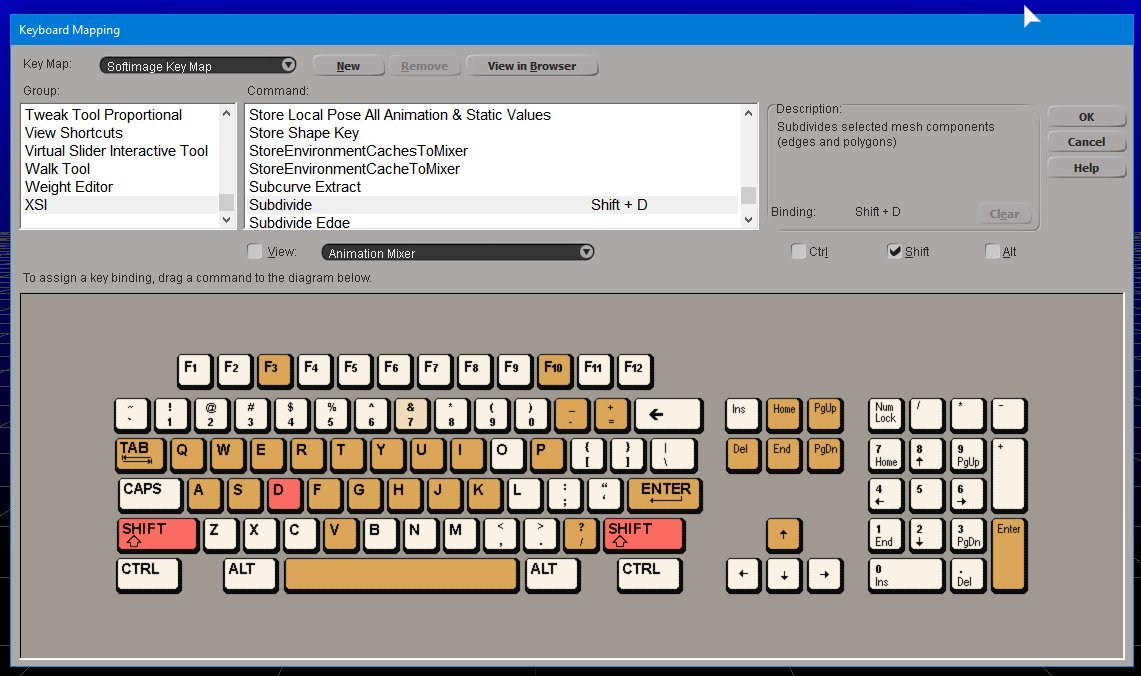
Softimage has the best shortcut key system I've found in ANY software. You have a keyboard layout. You have the "View" group and there you have the operators (not based on code). From there you can click and drag it to a hot key. You can see which key is used, which is used under a modifier (shift/control/etc). It's fun making keymaps, because it's visual, it's easy, it has error checking, it is physically accurate to your hand, and the system. What's more, you can press a key, and it will jump to the operator in the list and highlight it, showing you what a key does without being in a context sensitive workflow!
Overview:

- Map types you can save, load, delete
- View context - for modes and view hotkey groups, or maps
- All Operators - so you can see all the operators in that particular view/context.
- Modifiers under Operator descriptions - aid creating and assinging with modifiers
- The Visual representation of hotkeys - the best part. Dark colours are occupied keys, light are free keys. Red are highlighted, and green mode is the "assign" mode.
Learning/Revision/Conflict Checking:

- Mouse select of key highlights the operator in that selected mode.
- Keyboard press of hotkey highlights the visual key and operator in that selected mode
- Pressing a modifier hides the keys and shows what's available/assigned with that modifier.
- When an operator is highlighted, you can read a description.
Editing/Assigning:

- In this version, you can't search, but you can select by name the correct operator you'd like to assign or reassign.
- Press, toggle or select the modifier
- Once you have selected it, you drag the operator to a free hotkey and viola! A new hotkey.
- (not present) now you can select that key or press it on the keyboard and it will show that operator. Instant discoverability and error checking.
Features:
- Context/View list
- All operator list depending on Context/View
- Keyboard press to highlight operator assigned
- Select visual keyboard to highlight operator assigned
- Quick and easy Operator descriptions
- Drag and drop operator assignment
- Activate and toggle modifiers via mouse visually, keyboard or modifier toggles.
- Visual representation of assigned hotkeys
- Visual representation of free hotkeys
- Conflict check warnings
- Custom hotkey list management
- Pressing any hotkey in the correct context highlights that operator to discover it instantly.
It's a dream come true.
If Blender devs could build a third party application or integrate a system like this for Blender hotkey map creation, it would be gold.
This by far is the fastest and funnest way to edit hotkeys I've ever experienced.
Extra Features
- Add an operator search/filter
- Add mouse modifiers and the "pressed" "double" "release" modifiers
- Add an context/view search/filter
- Add a whole new context list THEN view list
Tasks
- Build a system that can visually assign hotkeys from an "All" context sensitive list, check and highlight hotkeys, etc - like this proposal
- Minimize bare essentials for Blender, let users define and have a couple good defaults or full use Blender heads
- Create the operator list described in detail, maybe even with image highlights to the UI equivalent.
Thanks for reading!
6 Comments
YES! This! Please! This is really needed. I can see how it could be a bit tricky, because Blender has so many different options and modes and windows. But I think it would be a HUGE usability improvement.
I know your screenshots are just supposed to show how it should work, but as someone else already said, Softimage looks pretty ugly there, so I just ant to show a different variation of this, which looks cleaner and less confusing in my opinion.
A software that does this absolutely wonderfully is Final Cut Pro X. Everything is nicely laid out and clean, and when you click on a key you can see every modifier combination of the key and which functions it has assigned.
And if you click on a function in the list, it shows you a description of the function (similar to Softimage):
Another nice feature is that if you press a modifier key on your physical keyboard (or select it in the top bar), all the keys that have something assigned to it will be highlighted. That way, you can very quickly assess which shortcuts are free.
|Command|Shift|Alt|Ctrl|
|Global|Object Mode|Edit Mode|Vertex Paint|...|Node Editor|...|...
This layout is absolutely perfect in my opinion. Maybe it’s a good source of inspiration. But in general, a physical shortcut editor would be very very beneficial for Blender – after all, the shortcuts are one of its biggest powers for a fast and effective workflow.
Edit: I also want to point out that you can drag around basically everything in the Final Cut Pro X shortcut editor. You can drag functions to the keys, you can drag keys to a function, you can drag functions to a specific modifier combination in the "Key Detail" window... but you can also just select a function and type in your key combination the oldschool way. It’s very well thought-out and easy to use.
@Fjodor F. Fjodor: Excellent. This is the kind of usability I was pointing at. Glad to hear another software has a similar system - if not more mature.
Something like this would definately be handy and speed up the hotkey development for everyone everywhere.
And yes, Softimage was not famous for it's aesthetic theme - but bruteforce usability, haha!
@Fjodor F. Fjodor: Just want to comment I've never used Final Cut Pro because I don't have a mac so I didn't know it had this, but damn, it's beautiful. It completely has Adobe Premier beat if it has dragging.
@alansartlog: RIght?? It’s really beautiful, the whole software is. Usability par excellence! I’d love to see Blender get inspired by a well designed shortcut editor like this.
(What do you mean with dragging btw?)
@Fjodor F. Fjodor:
And here I though I'd be happy if Blender would at least show if a combination interferes with another one already assigned but this is really nice. Now I want that! :D
It really looks like an elegant solution.
I have already mentioned in my related thread that I liked this approach.
But now I've have read your proposal properly I would just add that an extra feature that would be nice (in the unlikely miracle they implement any of this), would be being able to hover over the key to see the command and it's options. Also the start of the command name (if possible) on the key, but I would only really add them if dragging where actually implemented, because if you have the command names without dragging, it's confusing (**cough** Adobe Premiere **cough**).
Also things like
wm.context_toggleand menus and cycling through options need to be abstracted away / made user friendly as I mentioned in my proposal (regardless of whether custom menus are implemented as I proposed). Just in the defualt keymap there's like 100wm._context* operators! That's why I was asking what if anything was confusing about the list mockup. It needs to be handled somehow.And I think it goes without saying the softimage UI is as ugly as it looks functional, lol.