
Shift-S should respect the settings in the 3D Cursor Tool in Edit Mode
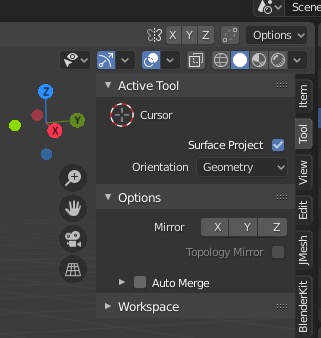
Currently, Shift-S respects the settings in -- 3D Cursor > Active Tool "Surface Project" and "Orientation: Geometry" -- only in Object Mode.
To place the 3D cursor aligned to the surface normals in the center of a surface, currently, two steps are required: First, the cursor is placed in Object Mode somewhere on the surface of interest, then switching to Edit Mode, selecting the surface and moving the cursor with Shift-S "(2) Cursor to Selected" to the center of the surface.
It would be great if Shift-S would respect the settings in the 3D Cursor Tool also in Edit Mode.
1 Comment
Yes I agree. See also this related post "Rotate cursor option in "Cursor to Selected/Active" command": blender.community/c/rightclickselect/Rxfbbc/
In Blender 2.82a, using the Cursor tool in Edit Mode, you can set Orientation to Geometry and enable Surface Project. These are treated separately from the Cursor settings in Object Mode. This allows you to orient the Cursor rotation to whatever surface you click on in Edit Mode like you can in Object mode. Then you can use Shift+S to snap the cursor location to the selected face.
This should be an option before snap and after snap. An F9 menu following a Shift+S operation would be helpful (like the "Offset" check box feature). As for before, there should exist "Cursor to Selected (Include Normal Orientation / Object Rotation)" similar to how you can choose "Selection to Cursor (Keep Offset)". This option would allow the cursor to align to object rotation or the normal of the selected vertex / edge / face when using using Shift+S.