
Image Editor: Adding Antialiasing
Currently, Blender’s “Image Editor” window lacks antialiasing functionality. Antialiasing is crucial for improving visual quality by reducing edge artifacts and aliasing effects. I propose integrating antialiasing into this window to provide a more pleasant and precise experience when working with images.
Benefits and Justification:
-
Enhanced Visual Quality: Antialiasing will smooth edges and reduce stair-stepping effects, resulting in sharper and more visually pleasing images.
-
Precision: Eliminating edge artifacts will allow users to work more accurately during image editing.
Possible Implementations:
-
Configurable Option: Add a toggle in the “Image Editor” window to enable or disable antialiasing based on user preferences.
-
Automatic Application: Apply antialiasing automatically to loaded images within the window.
-
Customizable Settings: Allow users to adjust antialiasing intensity according to their individual preferences.
Performance Impact: Consider evaluating how implementing antialiasing might affect Blender’s overall performance. Address any concerns related to speed or resource usage.
It’s important to highlight that all Blender users consistently utilize the “Image Editor”. Therefore, implementing antialiasing in this window would significantly enhance Blender’s overall experience.
7 Comments
I believe he is asking for antialiasing when the image is zoomed OUT. Though not clear why he is showing zoomed-in images.
Absolutely it should be doing something better than bilinear/bicubic filtering when zooming out (ie showing the image smaller than it really is). A box filter is ok.
Anything over 1:1 is supposed to artifact. The aliasing isn't a problem, it tells you if you have a problem elsewhere.
Blender shows you the image as it is. Other softwares might not.
But when working with images, you want to see images as they are. And it's not like you need to have antialiasing on zoomed in/out images in the first place.
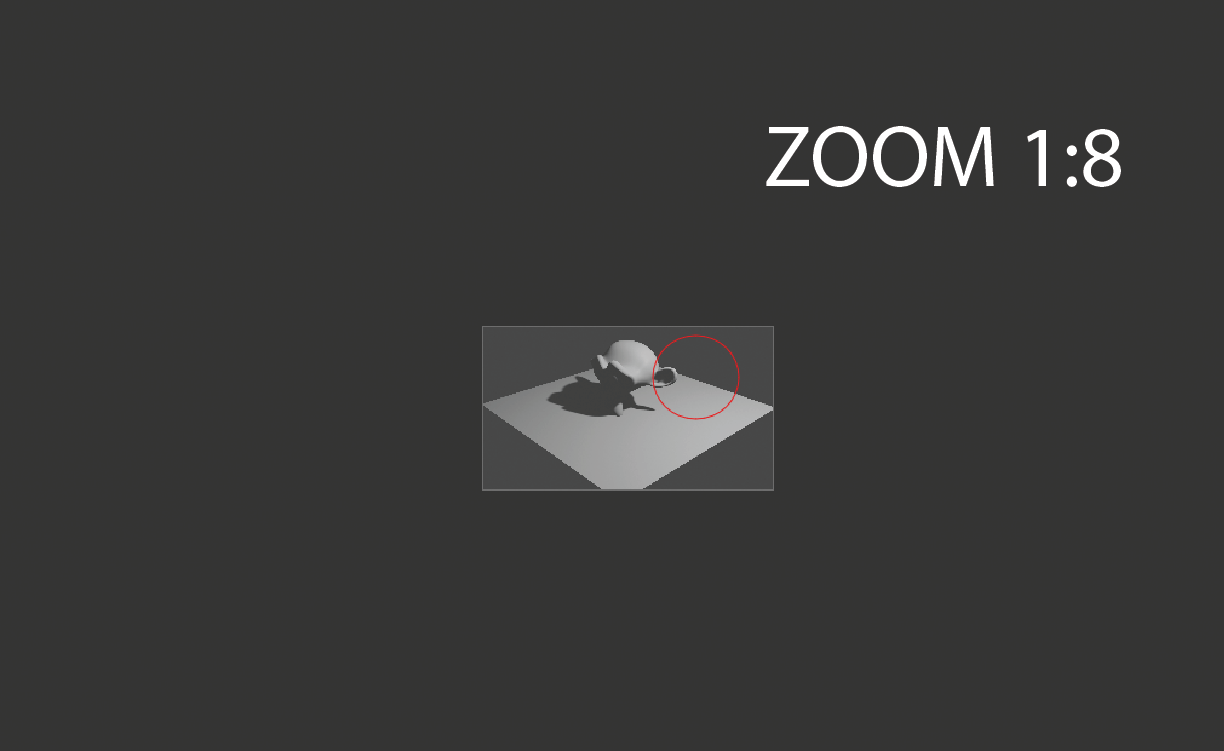
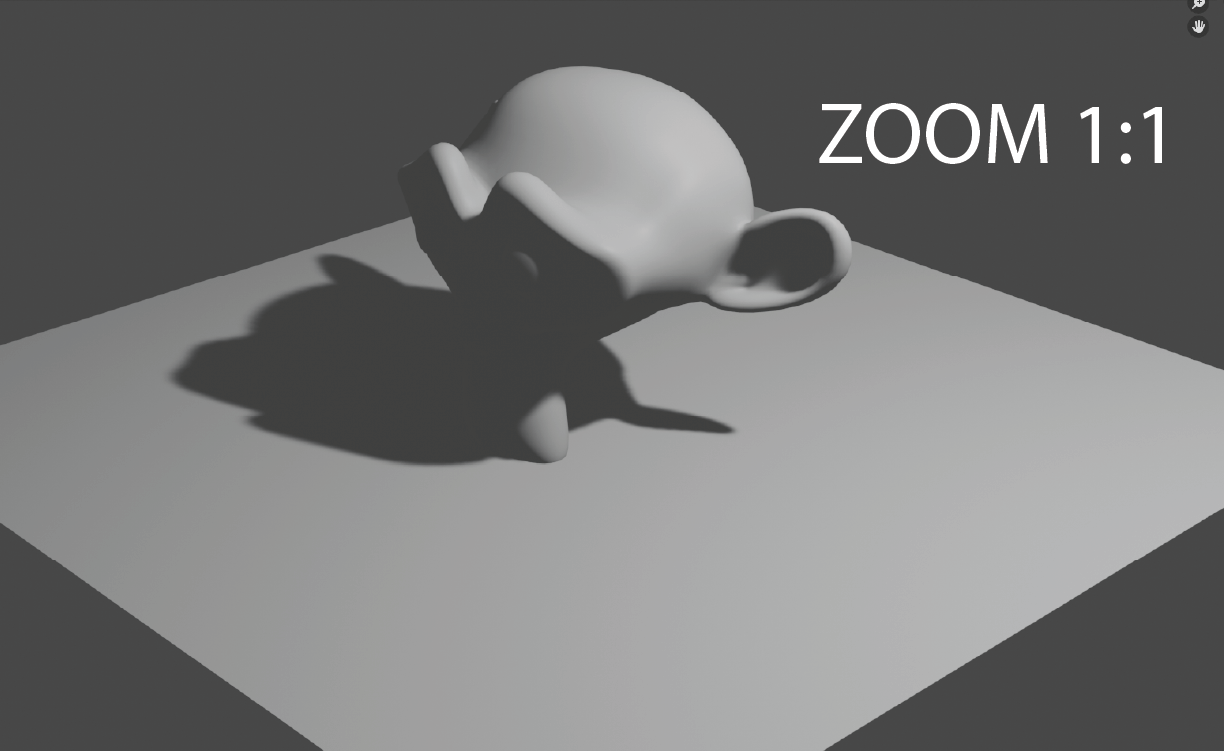
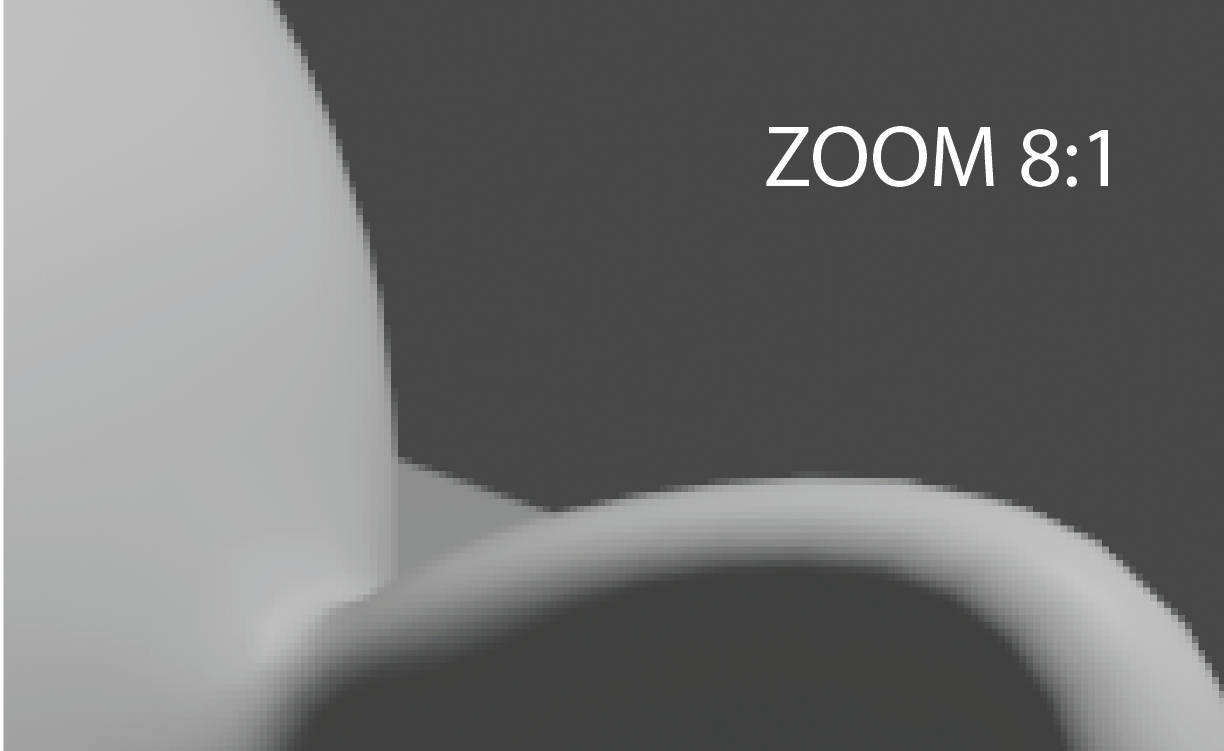
When rendering an image with the default parameters (1920x1080, resolution scale 100%) in any rendering engine, jagged edges are observed when zooming in or out of the image in the "Image Editor" window. However, this problem does not occur when the image is saved and opened with an image viewer on any operating system. Is this an antialiasing issue or is this the expected behavior?
It absolutely happens in other viewers. Render a 1920 image, open in Photoshop (or anything else), and zoom in 8x. It's going to pixelate. This is basic Digital Graphics 101.
Blender may not smooth the preview (bicubic, etc), but - of what use is it, to smooth it? If anything, the lack of AA is a visual cue that you are not viewing at 100%.
It’s evident that the image is not vector-based. At an 8x scale, pixelation is expected in any image viewer. However, the issue arises when slightly scrolling the mouse, causing a sudden zoom jump—whether it’s zooming in or out. This is where the jagged edges of the image become noticeable. Unfortunately, the “Image Editor” is quite rudimentary in this regard. It lacks any visual indicator to show that the image’s zoom level has changed. In contrast, even the most basic image viewers provide this feedback. {attachment 'ZG2Q' does not exist}
Having an option to disable antialiasing would be beneficial, especially for those who prefer to work without it. Although antialiasing is typically enabled by default, having the ability to adjust it would be a significant improvement.
Additionally, I’ve reviewed a proposal from three years ago with 234 upvotes. It’s an excellent proposal that seems to have been forgotten. I firmly believe that updating the rendering window is absolutely necessary to enhance the user experience. blender.community/c/rightclickselect/wGgbbc/